How to Configure Bedtime Mode on Android
- Difficulty
- Beginner
- Tested on
- Android 15 - Pixel 9
- You will need
- Android device running Android 10 or later, Digital Wellbeing app
Step by step
Open Digital Wellbeing settings
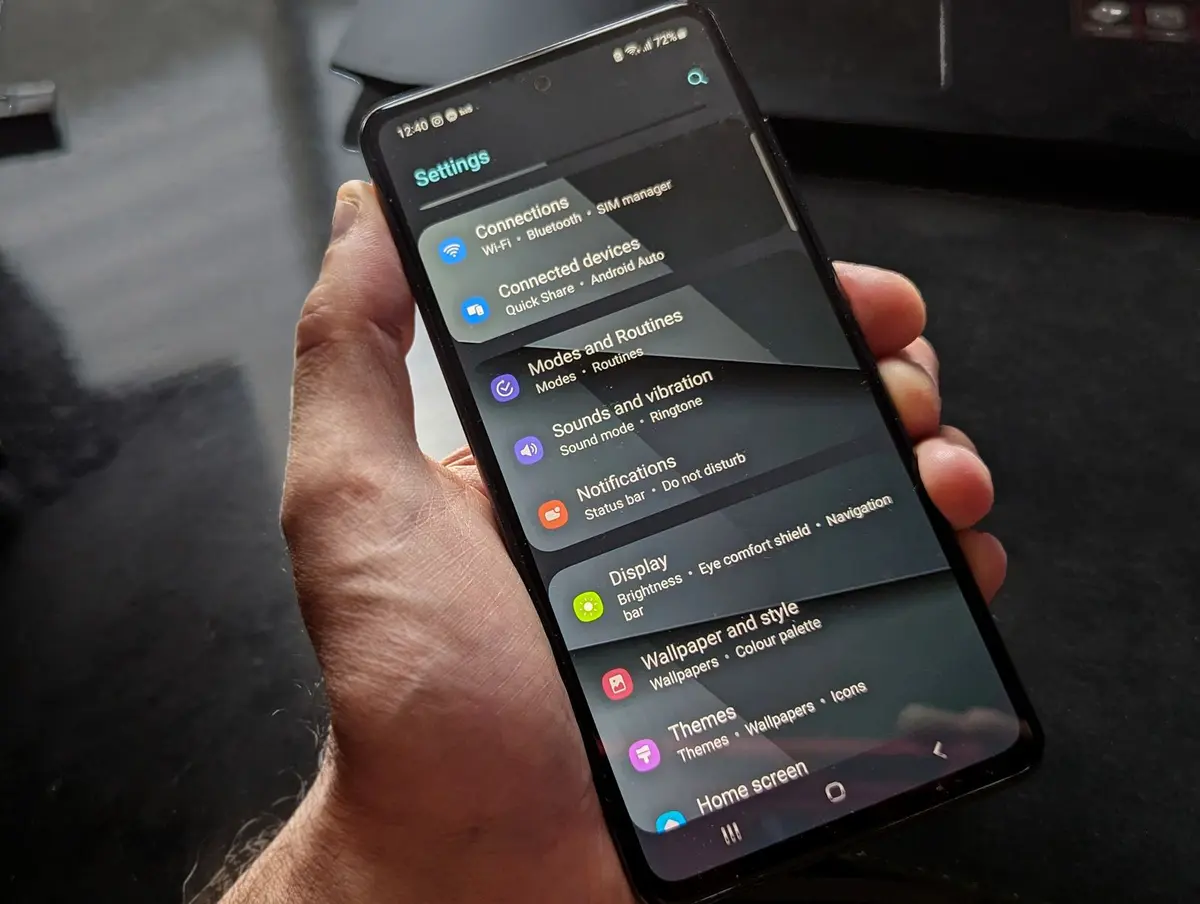
Open the Settings app on your Android device. Scroll down and select Digital Wellbeing & parental controls to access the configuration menu.
Access Bedtime mode options
Select Bedtime mode from the primary dashboard. If this is your first time accessing the feature, tap Turn on or Get started to view the available customization options.
Define your sleep schedule
Select Schedule and toggle the feature to On. Choose your desired start and end times, and select the specific days of the week you wish to apply this routine.
Note: You can set different schedules for weekdays and weekends if supported by your device manufacturer.Configure display and sound behavior
Under the Bedtime mode options, toggle Grayscale to limit blue light exposure. Enable Do Not Disturb to ensure all incoming calls and notifications are silenced during your scheduled hours.
Note: Grayscale mode is highly effective at reducing device engagement before sleep.Save your preferences
Review your settings to ensure the schedule and restrictions align with your requirements. Tap the back arrow to exit the menu; your changes are saved automatically.