How to Verify Tablet Compatibility With Stylus Pens
- Difficulty
- Beginner
- Tested on
- iPadOS 18.4, Android 15, Windows 11
- You will need
- Tablet, official manufacturer documentation, active stylus (if available)
Step by step
Locate your tablet model number
Find your exact model number to prevent compatibility errors. On iPad, go to Settings > General > About. On Android, navigate to Settings > About Tablet. On Windows, press the Windows key and type System Information.
Note: Avoid using generic marketing names like 'Galaxy Tab' or 'iPad Air' as digitizer support varies by specific sub-model.Check manufacturer support pages
Visit the official support website for your tablet brand. Search for the model number followed by 'stylus compatibility' or 'active pen support.' Look for a list of supported accessories or official product specifications.
Determine your digitizer technology
Identify if your screen uses an active digitizer or relies on simple capacitive touch. Active digitizers require powered pens with Bluetooth or electromagnetic resonance (EMR), while standard screens work only with passive, rubber-tipped conductive styli.
Note: Passive styli work on any screen that responds to a finger, but lack pressure sensitivity and palm rejection.Check Bluetooth settings for active pens
If your tablet supports an active pen, ensure the Bluetooth radio is active. Open Settings > Bluetooth and look for your stylus under 'Available Devices' or 'My Devices.' Follow manufacturer instructions to initiate pairing mode on the pen.
Test input in a native application
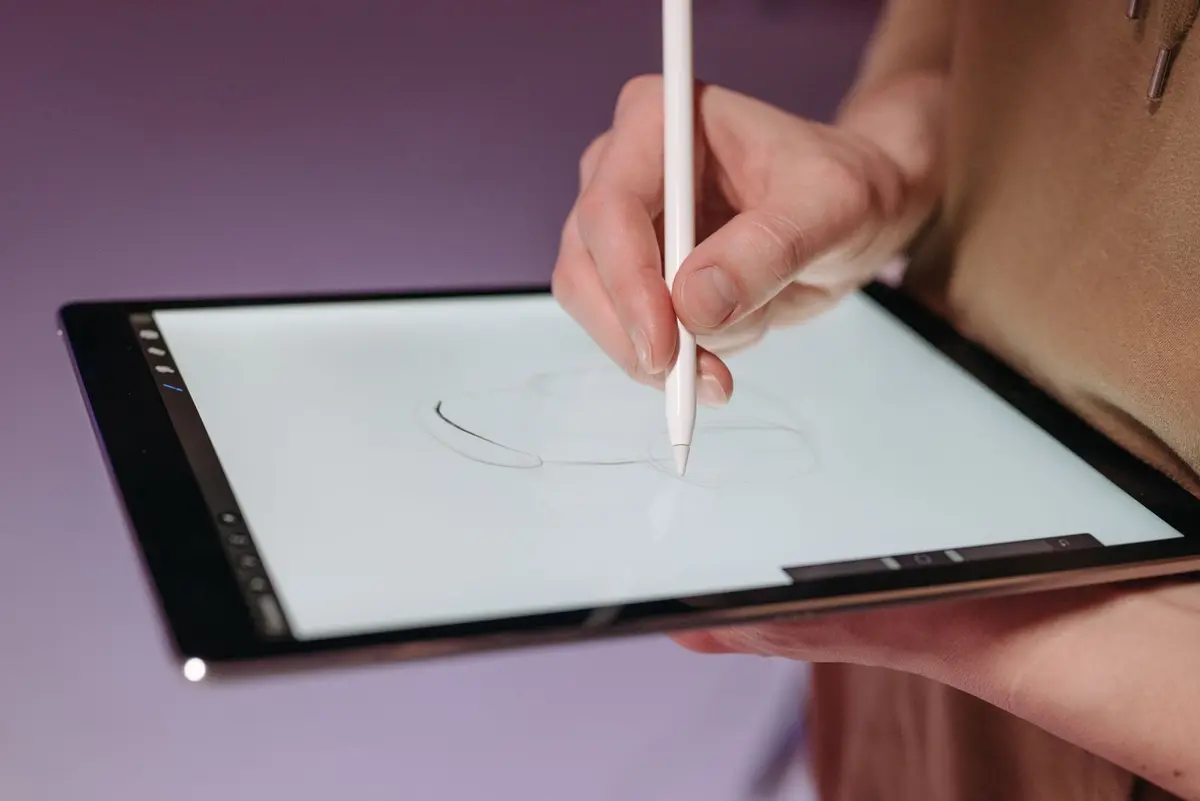
Open a drawing or note-taking application like Apple Notes, Microsoft OneNote, or Samsung Notes. Test for pressure sensitivity and palm rejection by resting your hand on the screen while writing. If the stroke does not register, the tablet likely lacks a compatible digitizer layer.
Note: Always test with the official manufacturer pen if third-party alternatives fail to register.