How to Build a Professional Laptop Workstation
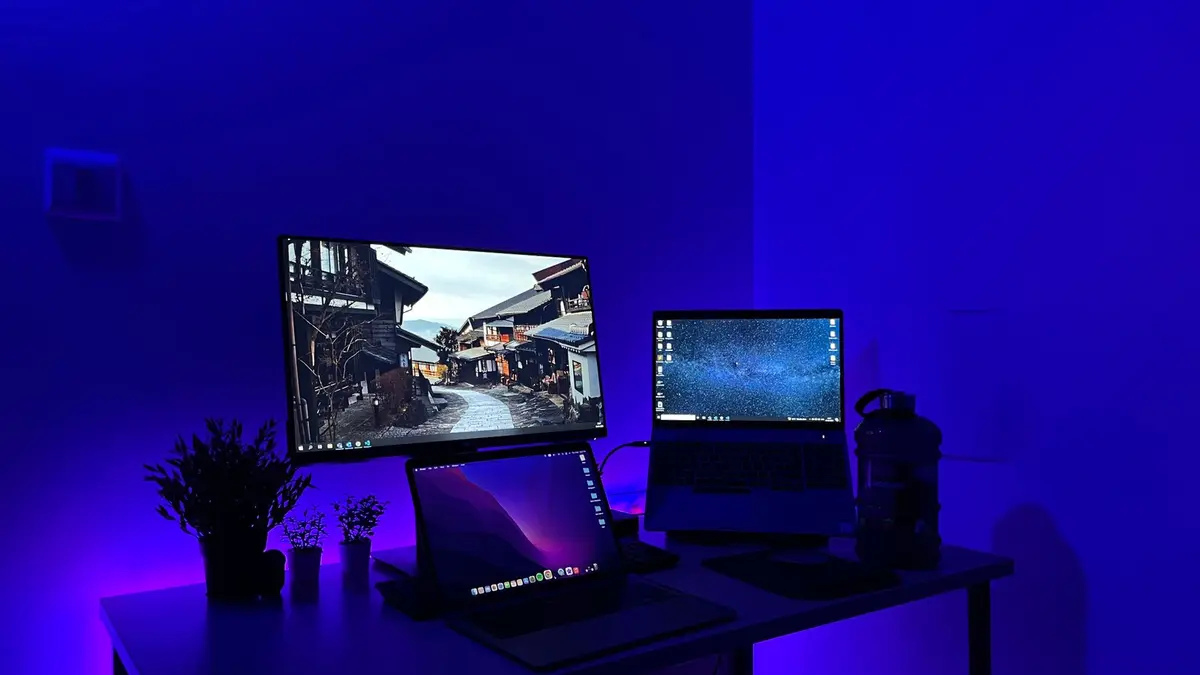
- Difficulty
- Beginner
- Tested on
- macOS Sequoia - MacBook Pro M4 / Windows 11 - Dell XPS 16
- You will need
- External monitor, mechanical keyboard, ergonomic mouse, USB-C docking station, laptop stand
Step by step
Elevate your laptop display
Place your laptop on a dedicated riser or stand to align the top third of the screen with your eye level. This prevents neck strain caused by looking downward for extended periods. Ensure the stand provides sufficient airflow to the laptop's underside for thermal management.
Note: Use an adjustable stand to fine-tune height based on your chair's elevation.Install the docking station
Connect a high-bandwidth USB-C or Thunderbolt dock to your laptop's primary port. Use this dock as the central hub for all peripheral devices to maintain a single-cable connection profile. This allows for instant docking and undocking of your portable computer.
Note: Ensure your dock supports the power delivery wattage required by your specific laptop model.Configure external input devices
Connect an external mechanical keyboard and an ergonomic mouse to the dock's USB-A or Bluetooth inputs. Position these devices on the desk surface so your elbows maintain a 90-degree angle while typing. Disabling the laptop's internal keyboard prevents accidental inputs.
Note: Use a wireless mouse with adjustable DPI to match your monitor's resolution.Sync your primary monitor
Connect your monitor via HDMI 2.1 or DisplayPort to the dock. Navigate to your System Settings, select Displays, and arrange the monitor's spatial orientation to match its physical location on your desk. Set the primary monitor as the main display to avoid desktop icon drift.
Note: Enable 'High Refresh Rate' in display settings for fluid window movement.Manage your cable architecture
Use cable management clips or a dedicated raceway under your desk to route peripheral cords away from your leg space. Secure excess cable length with Velcro ties to prevent tangling. A clean cable layout reduces visual distraction and simplifies workspace maintenance.
Note: Route the power cable and dock cable along the same path for a unified look.Finalize software environment
Configure your OS to use 'Clamshell Mode' if you prefer to keep the laptop closed while docked. Update all device drivers or firmware via the manufacturer's control software to ensure seamless peripheral communication. Test your inputs to confirm zero-latency response.
Note: Check your BIOS or System Settings to ensure the laptop stays awake when the lid is closed.