How to Use DALL-E 3 in ChatGPT
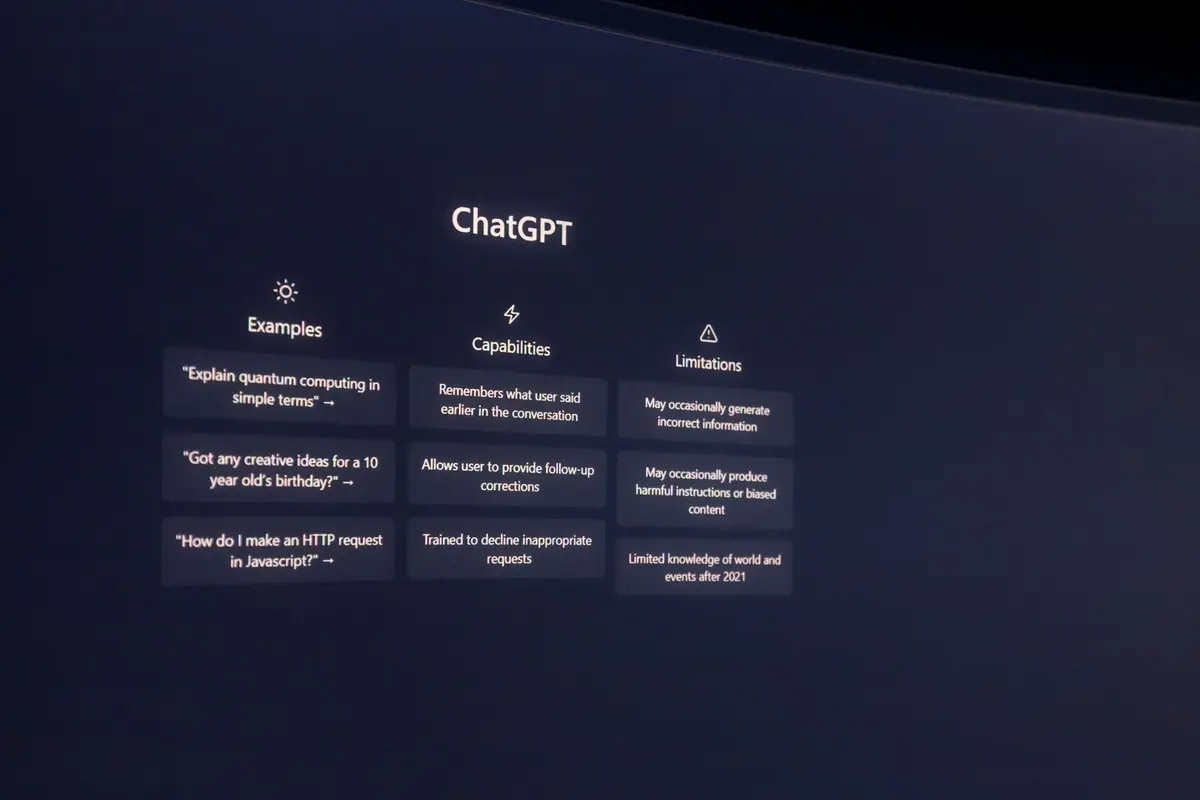
DALL-E 3 is OpenAI's most advanced image generation model, integrated directly into ChatGPT Plus and Enterprise subscriptions. You can create detailed images from text descriptions without switching platforms or learning complex interfaces.
- Difficulty
- Beginner
- Time
- 2 minutes
Step by step
Verify your ChatGPT subscription
DALL-E 3 requires ChatGPT Plus ($20/month) or Enterprise access. Click your profile icon in the bottom-left corner and confirm your subscription status shows Plus or Enterprise. Free ChatGPT accounts cannot access DALL-E 3.
Note: You can upgrade to ChatGPT Plus directly from the settings menu if needed.Start a new conversation with GPT-4
Click the model selector at the top of your chat interface and choose GPT-4. DALL-E 3 only works with GPT-4, not GPT-3.5. You'll see 'GPT-4' displayed prominently above the text input box when properly selected.
Note: GPT-4 has usage limits, so DALL-E 3 requests count toward your hourly message cap.Write a detailed image prompt
Type your image description directly into the chat. Be specific about style, composition, colors, and mood. For example: 'Create a minimalist illustration of a coffee shop at sunrise with warm orange lighting and people reading newspapers.' DALL-E 3 works best with descriptive, detailed prompts.
Note: Include artistic styles like 'digital art,' 'oil painting,' or 'photography' for more controlled results.Review the generated images
ChatGPT will display your images directly in the conversation thread within 30-60 seconds. DALL-E 3 generates one image per request, though ChatGPT may create multiple variations. Each image appears as a clickable thumbnail that expands to full size.
Note: Images are generated at 1024×1024 pixels by default, perfect for social media and web use.Download or modify your images
Click any generated image to view it full-size, then right-click and select 'Save image as' to download. To create variations, ask ChatGPT to 'make another version with different lighting' or specify exactly what you want changed.
Note: You can ask for different aspect ratios by specifying 'make this image wider' or 'create a vertical version.'Refine your results with follow-up requests
If the image isn't quite right, describe specific changes in your next message. Say 'make the background darker,' 'add more people,' or 'change this to a winter scene.' ChatGPT maintains context about your previous images and can build on them effectively.
Note: Use comparative language like 'similar to the last image but with' to maintain consistency while making adjustments.