How to Fix Wi-Fi Authentication Error on Android
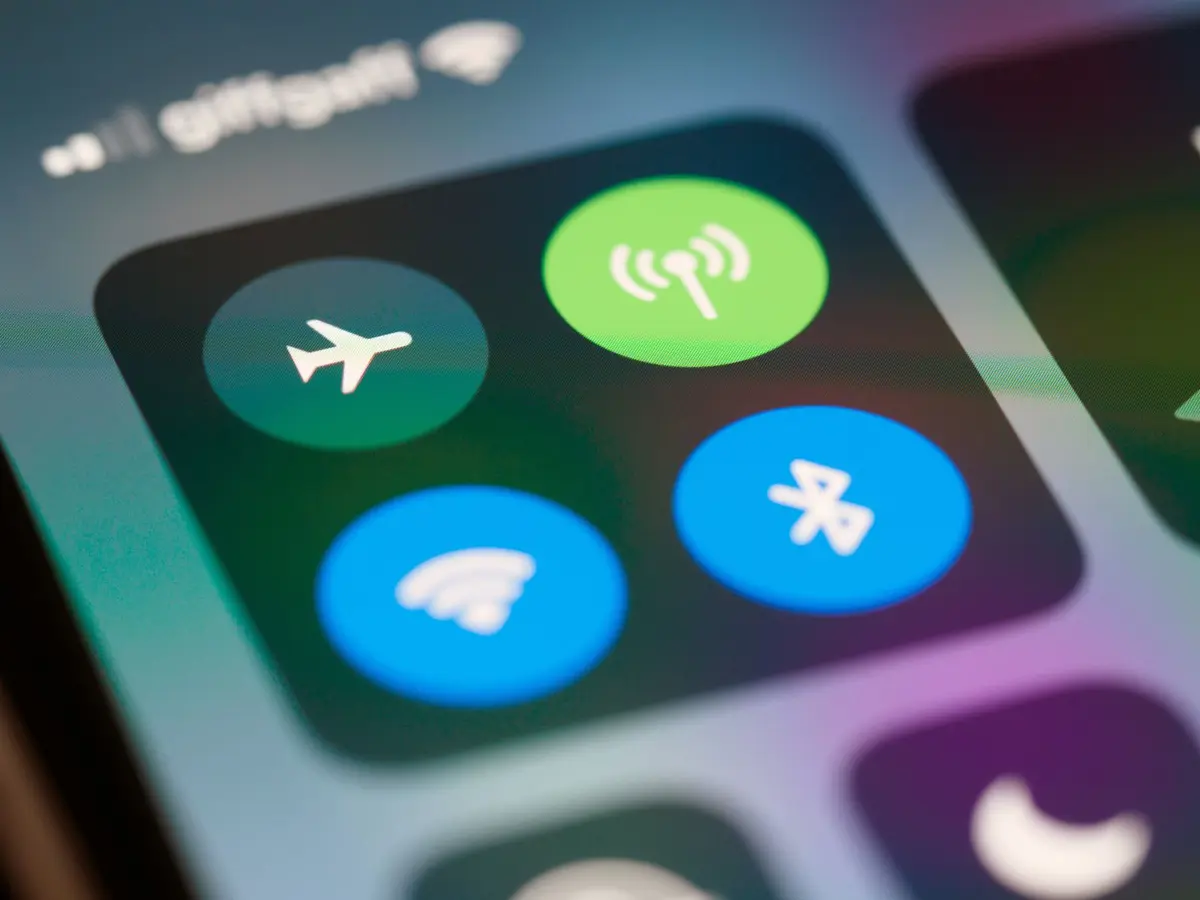
Wi-Fi authentication errors prevent your Android device from connecting to wireless networks, even with the correct password. These errors stem from network configuration conflicts, outdated credentials, or system glitches that block the handshake between your device and router.
- Difficulty
- Beginner
- Time
- 15 minutes
Step by step
Forget and reconnect to the network
Open Settings > Network & internet > Wi-Fi. Tap the gear icon next to your network name, then tap Forget. Wait 10 seconds, then tap your network again and enter the password. This clears cached authentication data that may be corrupted.
Note: Check the password with another device first to confirm it's correct before reconnecting.Restart your network hardware
Unplug your router and modem for 30 seconds, then plug in the modem first and wait 60 seconds. Plug in the router and wait for all lights to stabilize, usually 2-3 minutes. This refreshes the network's authentication protocols.
Note: Write down your Wi-Fi password before restarting in case the router resets to default settings.Reset Android network settings
Go to Settings > General management > Reset > Reset network settings. Tap Reset settings and enter your device PIN if prompted. This removes all saved Wi-Fi passwords, Bluetooth pairings, and mobile data settings, forcing a fresh network configuration.
Note: Screenshot your Wi-Fi passwords before resetting, as you'll need to re-enter them all.Change router security settings
Access your router admin panel by typing 192.168.1.1 or 192.168.0.1 in a web browser. Navigate to Wireless Security settings and change from WPA3 to WPA2/WPA3 Mixed Mode. Save settings and restart the router.
Note: Check your router manual or bottom label for the default admin username and password if you haven't changed them.Update Android system software
Open Settings > Software update > Download and install. Install any available updates and restart your device. Outdated system software can contain bugs that interfere with Wi-Fi authentication protocols.
Note: Connect to mobile data or another Wi-Fi network to download updates if your main network isn't working.Manually configure network settings
In Wi-Fi settings, tap your network and select Advanced options. Change IP settings to Static and enter: IP address 192.168.1.100, Gateway 192.168.1.1, DNS1 8.8.8.8, DNS2 8.8.4.4. Adjust the first three numbers to match your router's IP range.
Note: Check other connected devices to see what IP range your router uses - it might be 192.168.0.x instead of 192.168.1.x.