Mastering Team Communication in Slack
- Difficulty
- Beginner
- Tested on
- Slack Desktop 4.40 - macOS Sequoia
- You will need
- Active Slack workspace account, Desktop application installed
Step by step
Organize your sidebar channels
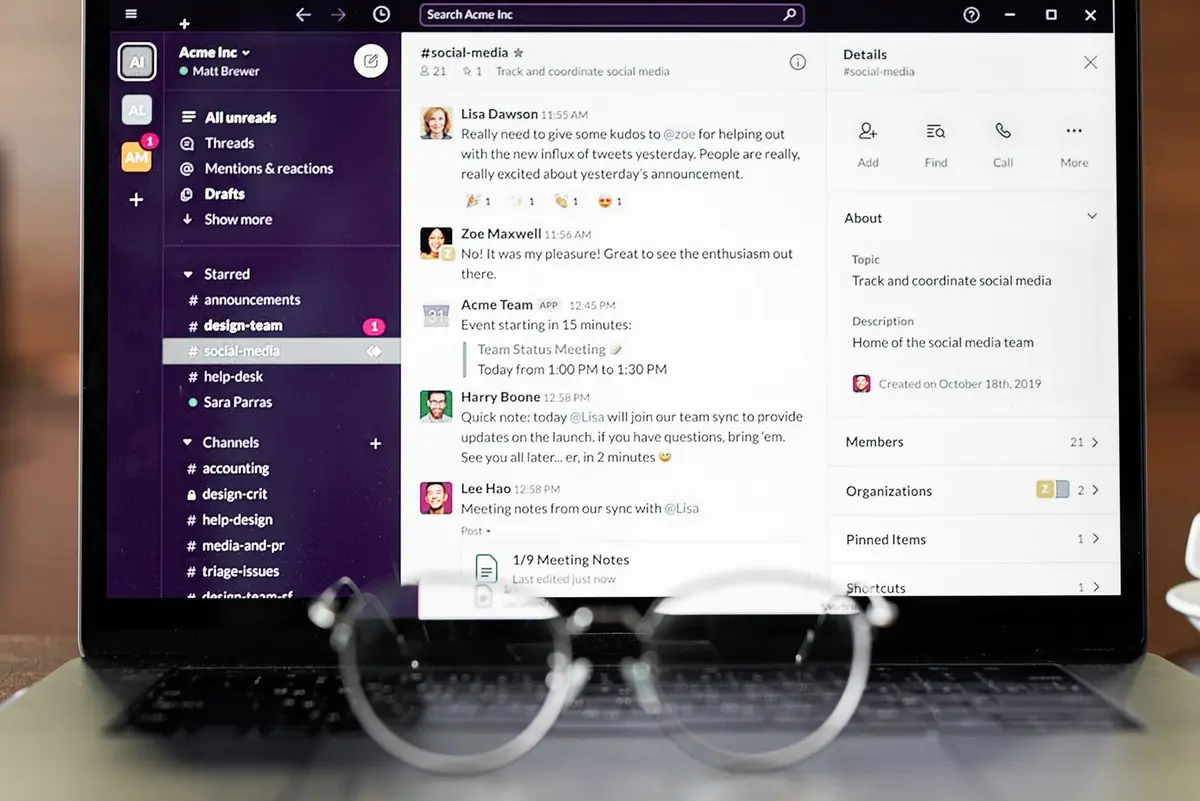
Right-click any channel in the sidebar and select 'Move to' to place it into a custom section. Use these sections to categorize projects or departments for faster navigation. Star critical channels to force them to the top of your sidebar list for constant visibility.
Note: Drag and drop channels directly to rearrange their order within sections.Use threads to maintain context
Hover over any message and select the 'Reply in thread' icon. This keeps conversations contained and prevents main channel clutter. Use threads for granular feedback while reserving the main channel for high-level announcements and project milestones.
Note: Enable 'Also send to channel' to notify the wider team when a thread response is urgent.Set custom notification schedules
Select your profile picture, navigate to 'Preferences', and click 'Notifications'. Select 'Set a notification schedule' to define your working hours. Outside of these hours, Slack will automatically suppress mobile and desktop alerts to maintain your work-life balance.
Note: Use 'Do Not Disturb' mode from the profile menu for immediate, temporary silence.Format messages for clarity
Use standard Markdown to improve message readability. Place asterisks around text for bolding, underscores for italics, and use backticks for inline code blocks. For multi-line code, use triple backticks to trigger a dedicated code block formatting tool.
Note: Use Shift + Enter to create a line break without sending the message.Utilize advanced search modifiers
Enter your query in the top search bar followed by modifiers to narrow results. Use 'from:@user' to find messages by a specific person, 'in:#channel' to filter by location, and 'has:file' to isolate documents. Combine these operators to locate specific data instantly.
Note: Use 'after:' or 'before:' followed by a date to refine search results by time period.Use reactions for feedback
Hover over a message and click the 'Add reaction' emoji icon. Use standardized reactions, such as a checkmark for completion or a notebook for 'under review', to acknowledge receipt without sending unnecessary 'thanks' messages. This keeps channel activity concise.
Note: Clicking an existing reaction increments the count, replacing the need for multiple reply messages.