How to Install Windows 11 from a USB Drive
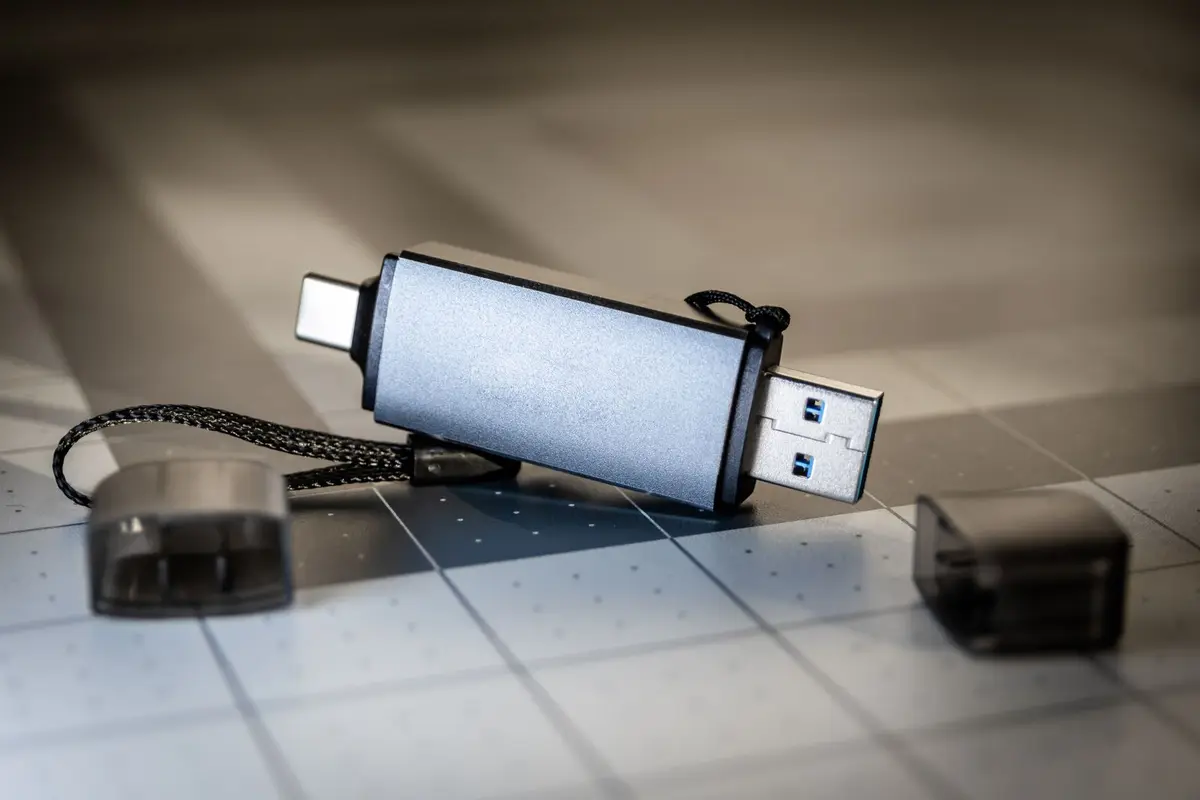
- Difficulty
- Intermediate
- Tested on
- Windows 11 24H2 - Dell XPS 15
- You will need
- 8GB+ USB flash drive, internet connection, Windows PC
Step by step
Download the Windows 11 Installation Media Creation Tool
Navigate to the official Microsoft software download page in your web browser. Locate the section for Create Windows 11 Installation Media and select Download Now.
Note: Ensure your USB drive contains no important data, as this process will format the drive.Generate the bootable USB drive
Insert your USB flash drive into the PC. Run the downloaded MediaCreationTool executable, accept the license terms, select USB flash drive, and choose your connected drive from the list. The tool will download the necessary files and finalize the bootable media.
Access the BIOS or UEFI firmware settings
Shut down your target computer completely. Power it on and immediately press the dedicated key assigned to open the BIOS or Boot Menu, which varies by manufacturer (typically F2, F12, F10, or Del).
Note: Refer to your motherboard manual if the boot menu key is not displayed during startup.Set the USB drive as the primary boot device
Navigate to the Boot tab within your UEFI settings. Move the USB flash drive to the top of the boot priority list or select it directly from the temporary boot menu. Save your changes and exit the BIOS to restart the computer.
Initiate the Windows Setup wizard
Once the computer boots from the USB, the Windows Setup screen will appear. Select your language, time, and keyboard preferences, then click Next and select Install Now. Enter your product key if prompted, or click I don't have a product key to proceed with activation later.
Select the installation destination
Select Custom: Install Windows only (advanced). Identify the drive or partition where you intend to install the operating system. Delete existing partitions on that specific drive if you are performing a clean install, then select the resulting Unallocated Space and click Next.
Note: This step permanently erases all data on the selected drive partition.