How to install apps on a Galaxy Watch
- Difficulty
- Beginner
- Tested on
- Wear OS 5 - Galaxy Watch 7
- You will need
- Samsung Galaxy Watch, active internet connection, registered Google account
Step by step
Open the Play Store on your watch
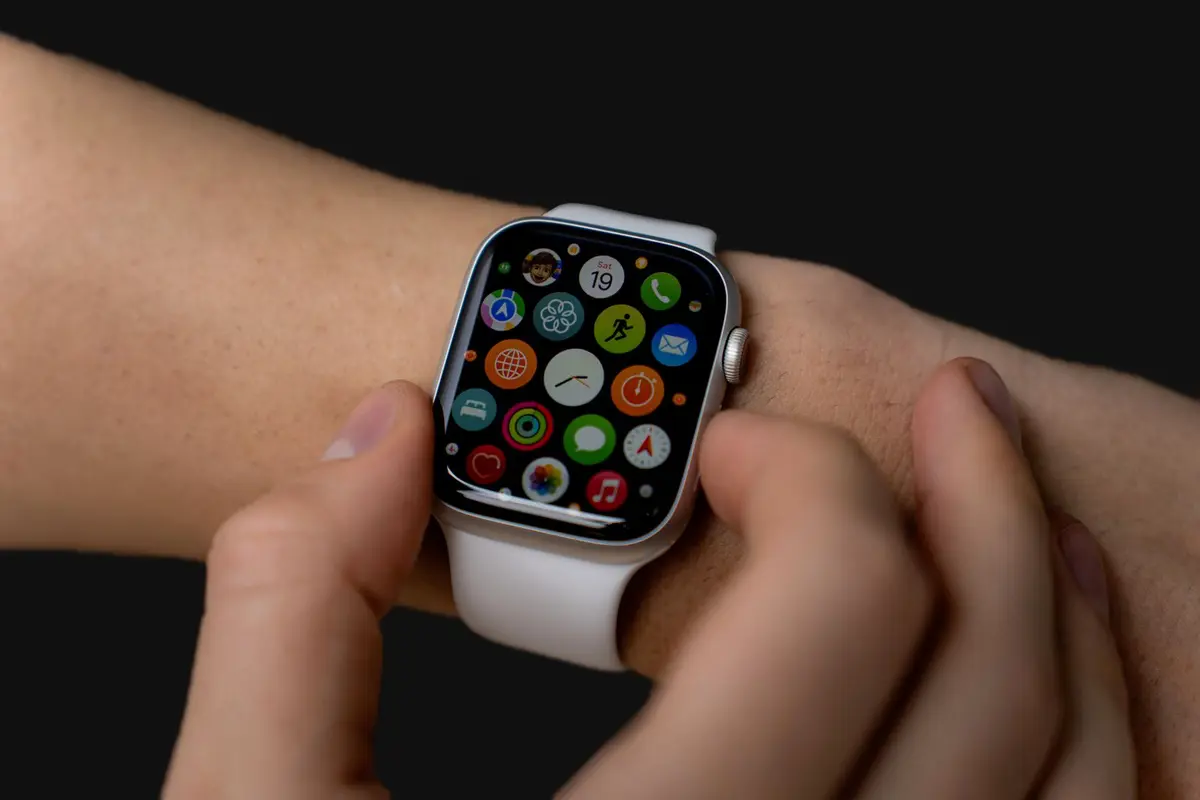
Wake your Galaxy Watch by tapping the screen or pressing the Home button. Swipe up from the bottom of the watch face to view your app drawer, then locate and tap the Play Store icon.
Note: Ensure your watch is connected to Wi-Fi or LTE for faster downloads.Search for your desired application
Tap the search icon at the top of the store interface. Use the on-screen keyboard, voice input, or handwriting recognition to type the name of the app you wish to install.
Choose the correct app from results
Review the search results displayed on the screen. Tap the card corresponding to the application you intend to install to view its details page.
Initiate the installation
Locate the Install button on the app details page. Tap it to begin downloading the application package to your device storage.
Note: If the app is paid, you must confirm the purchase using your linked payment method before installation begins.Launch the new application
Once the progress circle completes, the button will change to Open. Tap Open to launch the app, or navigate back to your app drawer to find the new icon placed at the end of your list.
Note: You can long-press and drag the app icon to rearrange it in your app drawer for easier access.