How to Fix a Non-Responsive Wearable Wallet
- Difficulty
- Beginner
- Tested on
- watchOS 11.4 - Apple Watch Series 10
- You will need
- Smartphone, stable Wi-Fi connection, wearable device
Step by step
Check the NFC antenna alignment
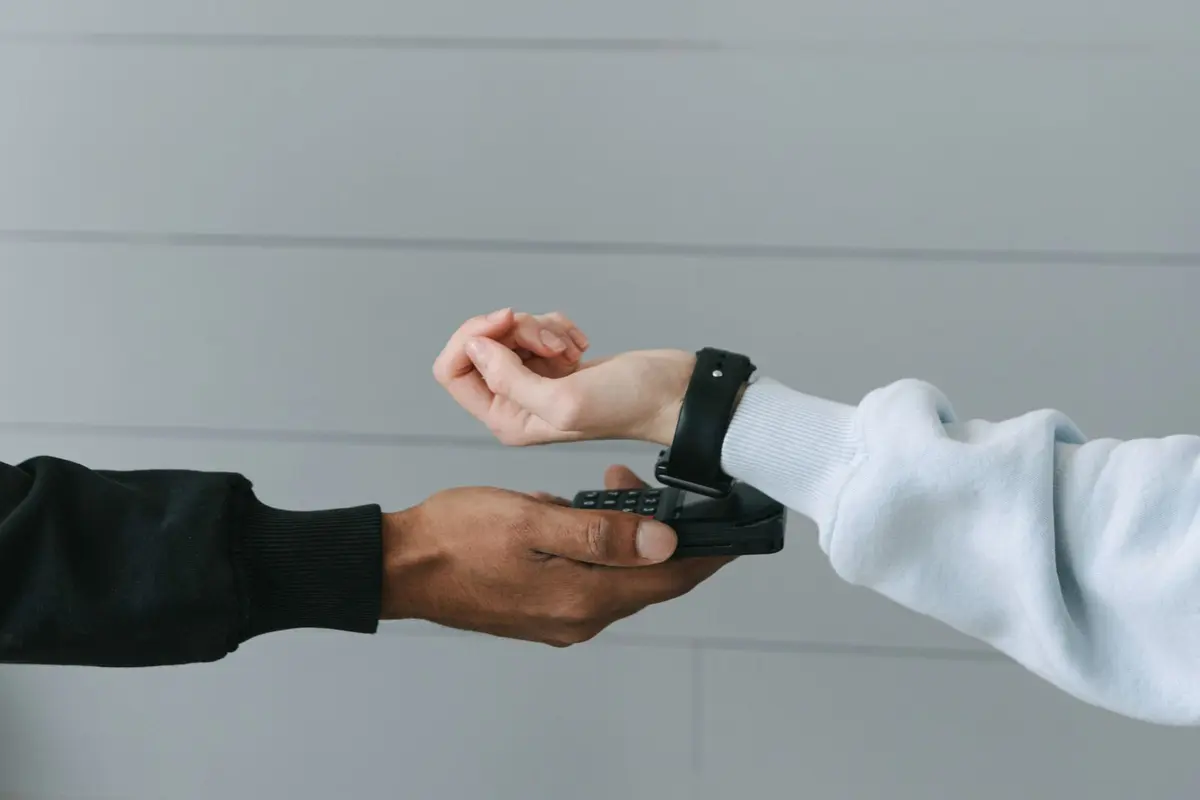
Contactless readers utilize precise NFC fields. Ensure the top edge of your wearable device is centered directly over the reader's contact point, not the screen or the bottom casing. Hold the device steady for one to two seconds to allow the handshake to complete.
Note: Remove heavy metal or thick rubber cases from your wearable if they interfere with NFC signal transmission.Confirm biometric authentication settings
If your wearable requires a passcode or biometric unlock, ensure it is locked to your wrist. If the device detects it has been removed, the secure element automatically disables payment tokens. Re-enter your passcode on the device to re-enable the wallet.
Force restart the wearable
System cache errors can prevent the secure element from initializing. For most devices, hold the digital crown and the side button simultaneously until the screen goes black and the manufacturer logo reappears. This flushes the temporary memory buffers.
Note: Do not release the buttons until the logo appears to ensure a hard reset.Refresh payment card tokens
If the reader rejects the card, the token may be expired or suspended. Open the companion app on your phone, navigate to your Wallet settings, and select the specific card. Choose 'Remove Card' and add it again to generate a new, valid security token.
Note: Ensure your connected smartphone has an active internet connection during this process.Toggle Wi-Fi and Bluetooth
Connectivity glitches between your phone and wearable can block payment verification. Open the Control Center on your phone, toggle Bluetooth off for ten seconds, then turn it back on. Wait for the reconnection animation to confirm a stable link.