How to Configure Smart Camera Notifications
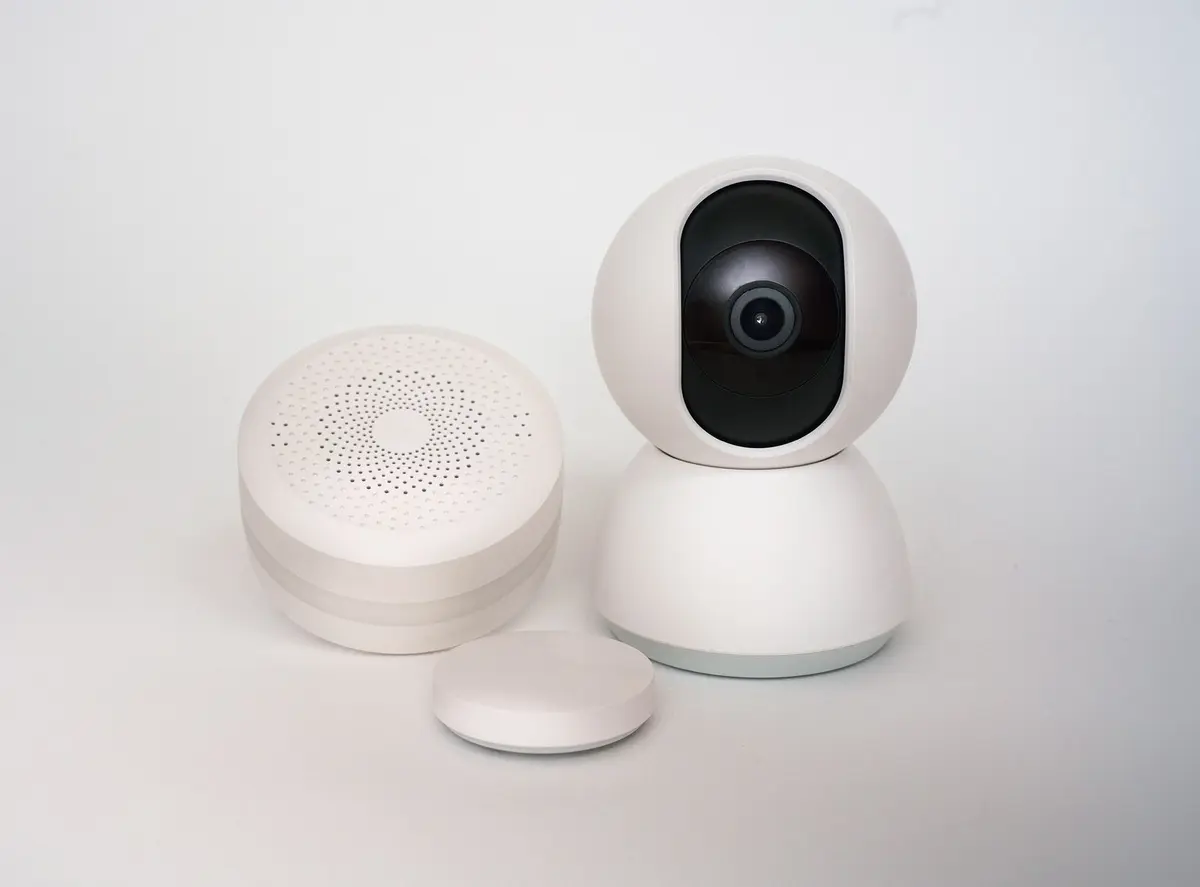
- Difficulty
- Beginner
- Tested on
- iOS 18.4 - Nest Cam / Ring Stick Up Cam
- You will need
- Smartphone with camera manufacturer app installed, Active internet connection
Step by step
Open your camera settings
Launch your camera’s dedicated mobile application. Navigate to the camera feed and tap the gear icon located in the upper right corner to access device-specific preferences.
Define detection types
Select Event Notifications or Notification Settings. Toggle off generic motion alerts and enable specific categories like Person, Package, or Animal detection to filter out ambient noise like swaying trees.
Note: AI-based person detection significantly reduces false positives.Set activity zones
Locate Activity Zones or Motion Zones within the settings menu. Draw custom boxes over areas where movement is expected, such as your doorway, and exclude high-traffic areas like busy sidewalks or public roads.
Establish quiet hours
Navigate to the Notification Schedule section. Define specific time blocks during which alerts should be suppressed, such as when you are home or during nighttime hours.
Note: Use 'Home/Away' assist modes to automate notifications based on your phone's GPS location.Refine alert frequency
Adjust the cooldown or alert interval settings if available. Increasing this duration prevents a flood of notifications when multiple events occur in rapid succession.