How to Connect a Smart Thermostat to Wi-Fi
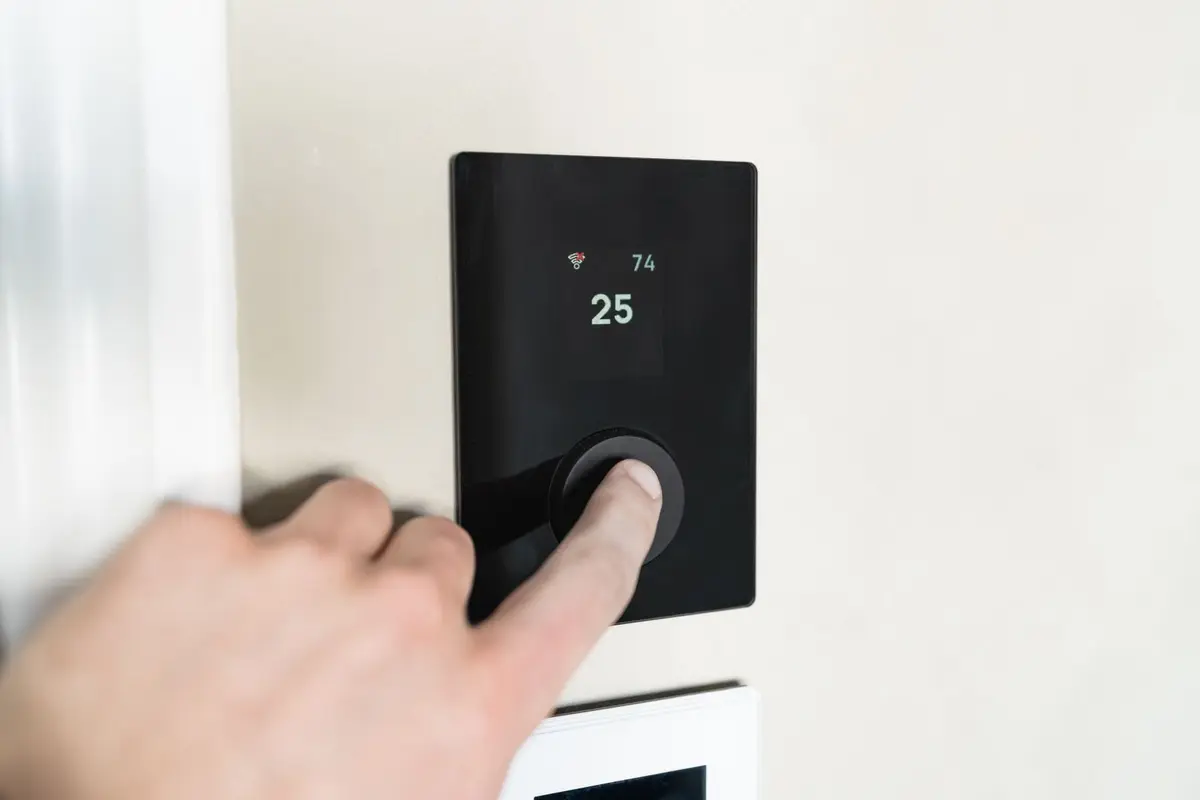
- Difficulty
- Beginner
- Tested on
- Ecobee Smart Thermostat Premium - iOS 18.4
- You will need
- 2.4GHz Wi-Fi network credentials, Smartphone with manufacturer app installed, Bluetooth enabled
Step by step
Confirm network compatibility
Ensure your router supports 2.4GHz frequency bands. Most smart thermostats require 2.4GHz for initial pairing, even if your phone uses 5GHz.
Note: Disable your smartphone's cellular data temporarily to ensure the setup process forces a Wi-Fi handshake.Activate pairing mode on the thermostat
Access the main menu on the thermostat display. Navigate to Settings, then select Wi-Fi, and ensure it is toggled to Enabled.
Launch the manufacturer application
Open the official app on your mobile device. Sign in to your account and tap the '+' or 'Add Device' icon to initiate the discovery protocol.
Note: Ensure Bluetooth is enabled on your phone to allow the app to broadcast configuration settings to the thermostat.Select and authorize the network
Select your local Wi-Fi network from the list discovered by the application. Input your WPA2/WPA3 password when prompted to finalize the credential transfer.
Note: Avoid using guest networks, as these often implement AP isolation that prevents device communication.Confirm connection status
Observe the thermostat display for a solid Wi-Fi icon indicating a successful handshake. Return to the mobile app to verify that the thermostat reflects the current indoor temperature.
Note: If the connection fails, power cycle the thermostat by removing it from the wall base for ten seconds and re-seating it.