How to Customize Smart Home Room Names
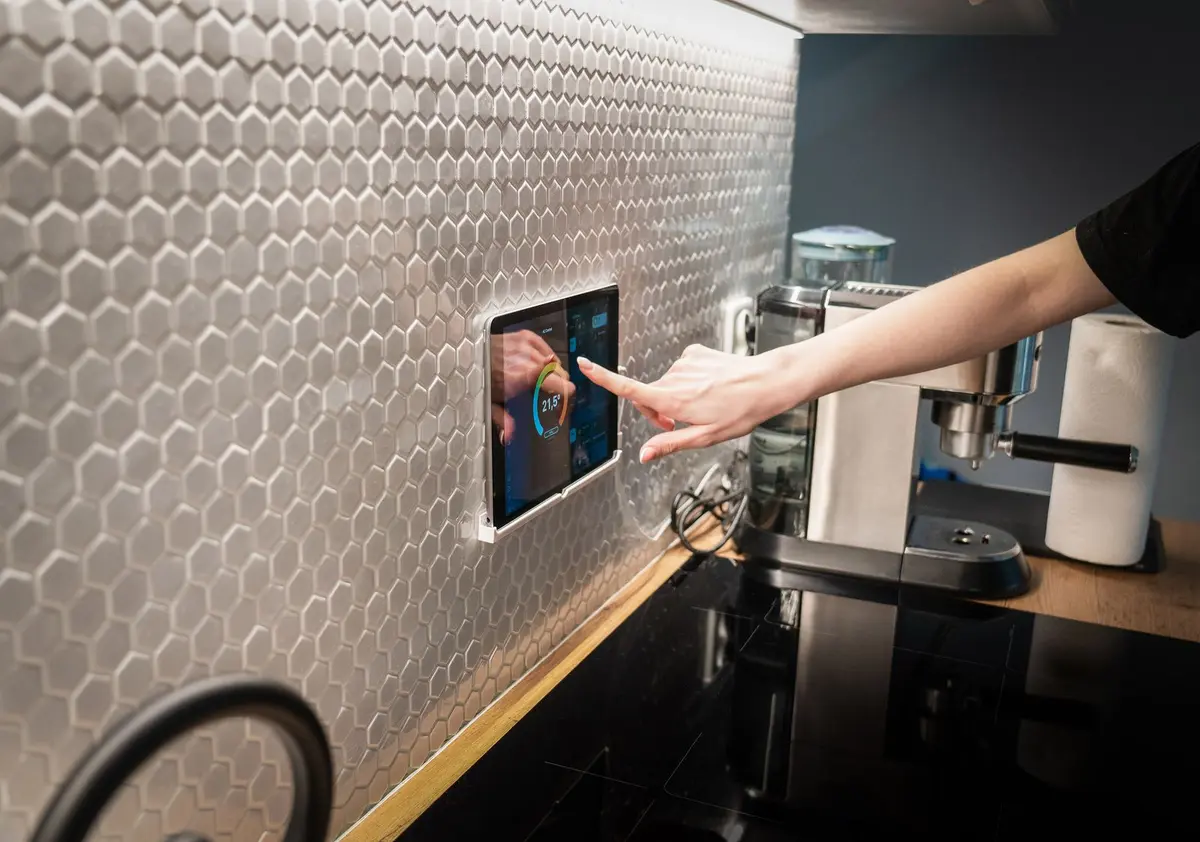
- Difficulty
- Beginner
- Tested on
- Apple Home, iOS 18.4
- You will need
- Active smart home platform app, connected smart home hub
Step by step
Launch the home management application
Open the primary app used to manage your smart home devices, such as Apple Home, Google Home, or Amazon Alexa. Ensure you are signed in with the administrative account associated with your home hub.
Locate the Room settings menu
Navigate to the Rooms or Home tab within the application interface. Find the specific room you wish to modify and select the room name or the settings icon (represented by three dots or a gear symbol) associated with that room.
Note: On Apple Home, long-press a room name to access the Room Settings menu.Input the new room name
Select the text field containing the current room name. Clear the existing label and type your preferred name using the on-screen keyboard.
Note: Use unique names to avoid conflicts with voice assistant commands.Commit the changes
Tap the Save or Done button in the corner of the interface to apply the changes. The app will sync the new label across all connected devices and secondary user accounts immediately.
Test the new room label
Verify the update by issuing a voice command to your smart speaker, such as Turn off lights in [New Room Name]. Confirm the devices in that room react accordingly.
Note: If the command fails, restart your smart home hub to refresh the device registry.