How to Run Disk Utility First Aid on macOS
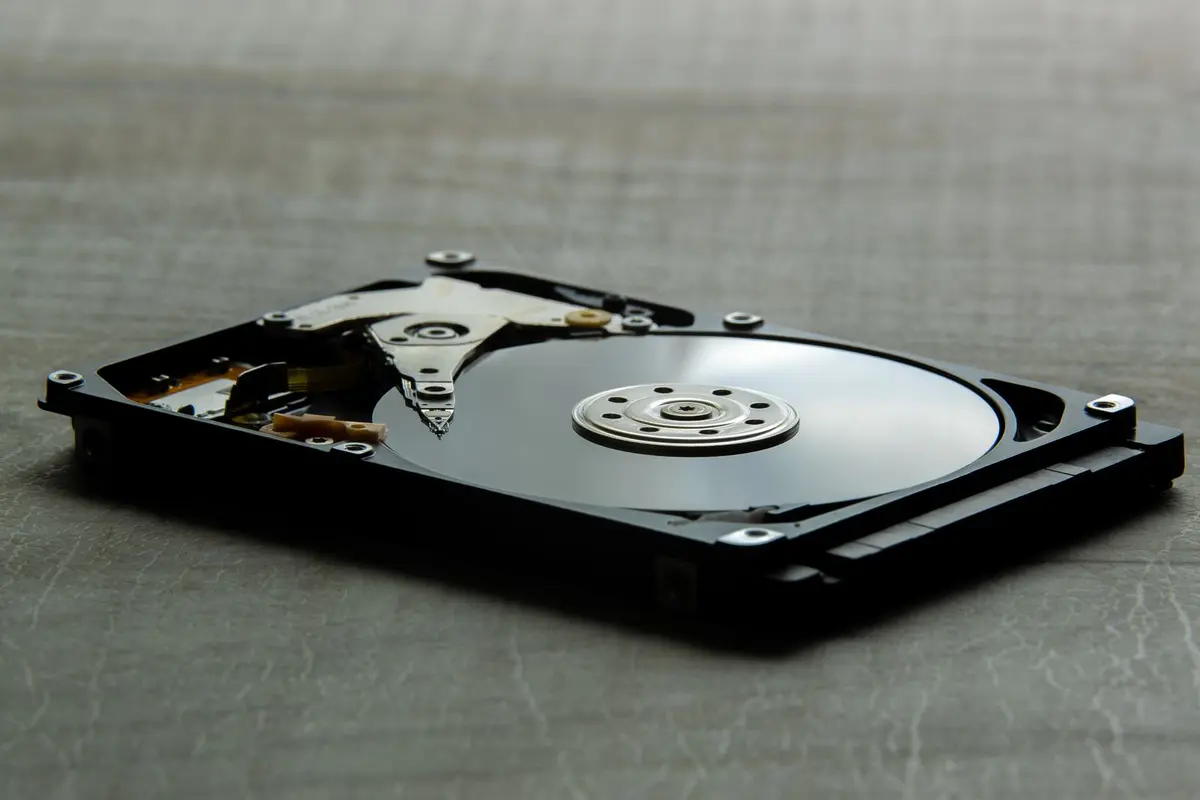
- Difficulty
- Beginner
- Tested on
- macOS Sequoia - MacBook Air M3
- You will need
- Mac running macOS, Administrator credentials
Step by step
Open Disk Utility
Press Command + Space to open Spotlight Search. Type 'Disk Utility' and press Enter to launch the application.
Note: Command + SpaceShow all devices
Click the View button in the top-left toolbar. Select 'Show All Devices' from the dropdown menu to ensure all volumes and containers are visible in the sidebar.
Note: Hidden volumes often contain the errors affecting your system.Select the target disk
Select your disk or volume from the sidebar list. Begin with the bottom-most item in the hierarchy, such as 'Macintosh HD', then work your way up to the parent container.
Run First Aid
Click the 'First Aid' button in the toolbar. A confirmation dialog will appear; click 'Run' to initiate the diagnostic scan.
Note: Your screen may flicker or the system may become unresponsive during this process.Review the repair results
Wait for the process to complete. Disk Utility will display a report indicating whether errors were found and successfully repaired, or if manual intervention is required.
Note: If First Aid reports 'overlapped extent allocation' errors, you must back up your data and reformat the drive immediately.Quit the application
Click 'Done' once the summary is displayed. Close Disk Utility by pressing Command + Q.
Note: Command + Q