How to Transfer Files to a New Mac Manually
- Difficulty
- Intermediate
- Tested on
- macOS Sequoia 15.1 - MacBook Pro M4
- You will need
- External SSD, USB-C cable, Stable Wi-Fi network
Step by step
Organize your source data
Clean up your source Mac by deleting temporary files and empty folders. Consolidate documents, photos, and music into centralized locations to streamline the transfer process.
Note: Empty the Trash before starting to reduce transfer time.Transfer data via AirDrop
Ensure both Macs are on the same Wi-Fi network and Bluetooth is active. Select files on the source Mac, right-click, select Share, and choose AirDrop to send items directly to the new Mac.
Note: AirDrop is optimal for small to medium file batches under 50GB.Format your external drive
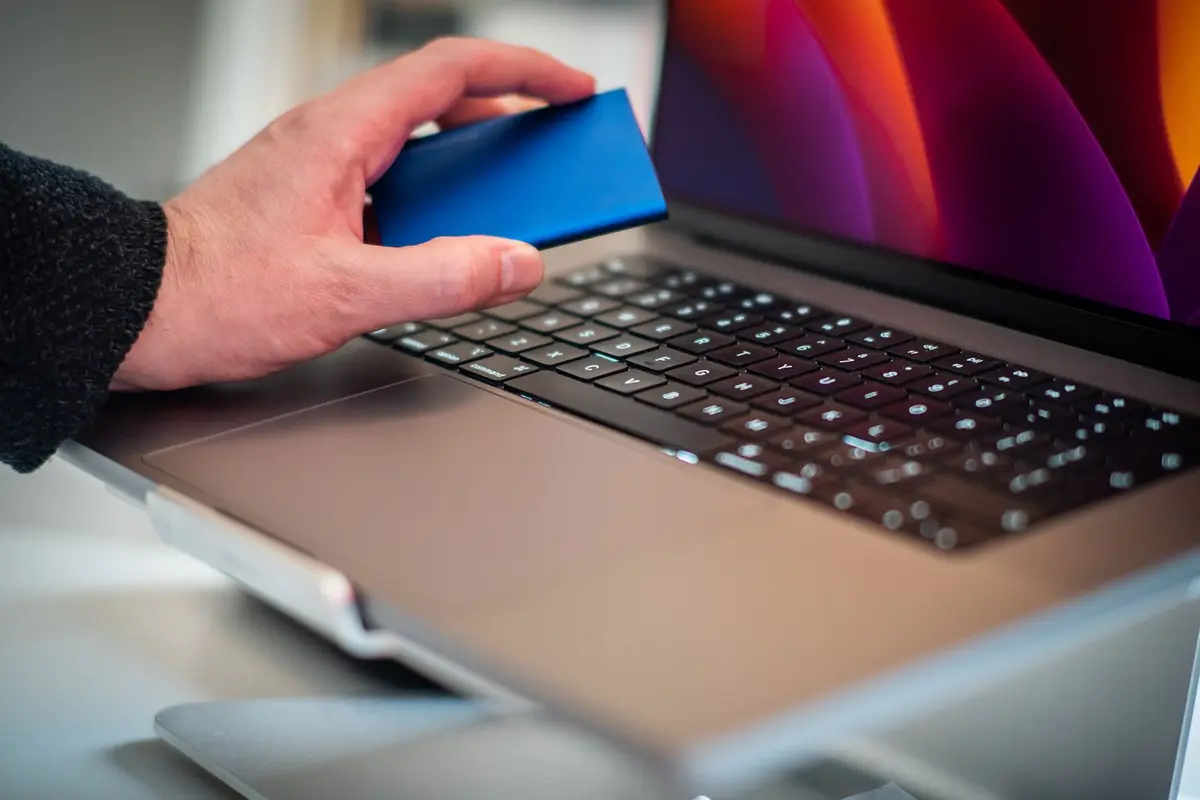
Connect your external SSD to the source Mac and open Disk Utility. Select the drive in the sidebar, click Erase, and ensure the format is set to APFS to ensure full compatibility with macOS file systems.
Note: Ensure the external drive has enough capacity to hold your entire home directory.Copy files to the external drive
Open Finder and drag your folders from the User directory onto the external drive. Wait for the copy progress bar to disappear, then right-click the drive icon and select Eject before disconnecting.
Note: Avoid copying System or Library folders to prevent permission conflicts on the new machine.Import files to the new Mac
Connect the external drive to the new Mac. Open the drive in Finder and drag your data into the corresponding folders in your new User directory, such as Documents, Downloads, or Pictures.
Verify iCloud synchronization
Navigate to System Settings > Apple Account > iCloud. Toggle on the switches for iCloud Drive, Photos, and Desktop & Documents to pull cloud-stored data automatically without manual copying.
Note: Ensure both machines are signed into the same Apple Account.