How to Schedule Text Messages on iPhone
- Difficulty
- Beginner
- Tested on
- iOS 18.4 - iPhone 15 Pro
- You will need
- iPhone updated to iOS 18 or later
Step by step
Open the Messages app
Locate and tap the Messages icon on your home screen or App Library. Select the conversation thread where you wish to send the scheduled message.
Compose your message
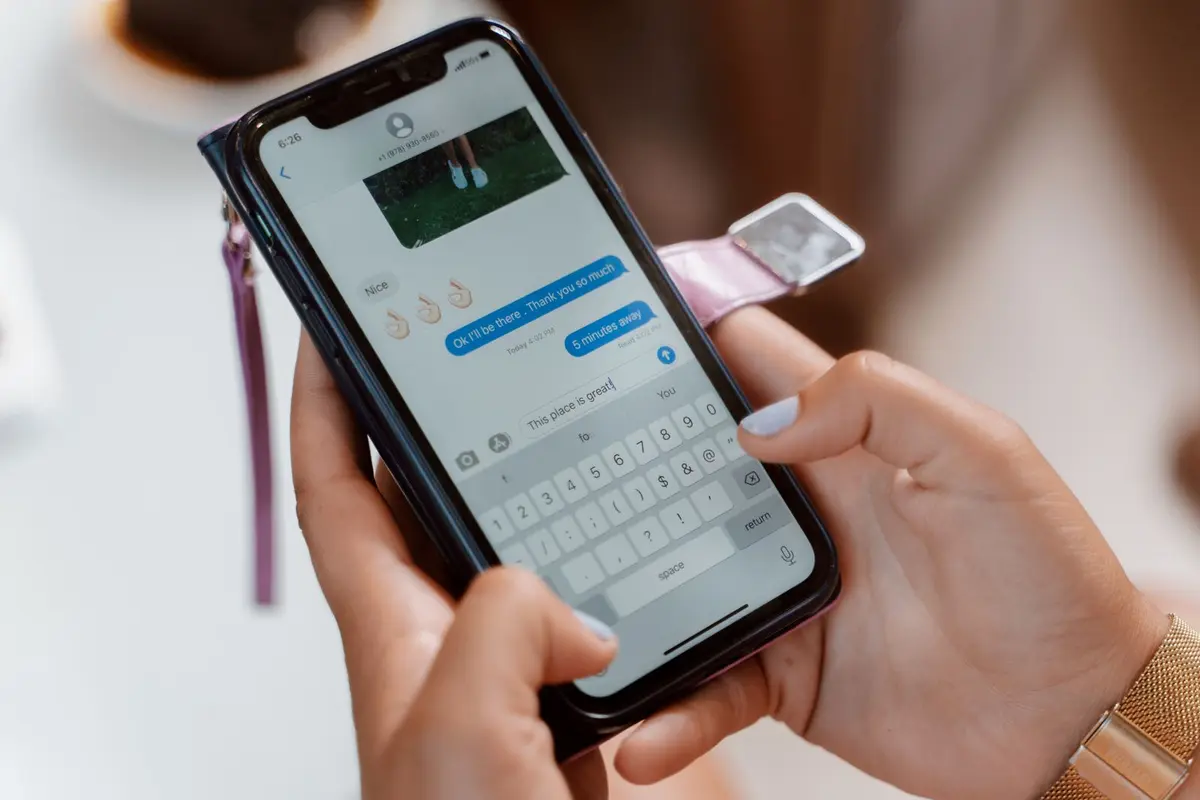
Tap the text input field above the keyboard and type the message you intend to send. Do not press the send arrow yet, as this will transmit the message immediately.
Note: Ensure your text is complete before proceeding to the scheduling menu.Open the plus menu
Tap the plus (+) icon located to the left of the text input field. This reveals the expanded list of message features and tools.
Choose Send Later
Locate and tap the Send Later option from the list of utilities. If the option does not appear, swipe up to view additional hidden menu items.
Note: This option is only available for iMessage conversations.Set the delivery time
Use the date and time picker to select the exact moment you want the message to be delivered. Once configured, tap outside the picker to confirm your settings.
Commit the scheduled message
Tap the send arrow icon. The message bubble will appear with a dashed outline, indicating that it is successfully queued for future delivery.
Note: You can edit or delete the scheduled message by tapping the dashed bubble before the delivery time.