How to Add Widgets to Your iPhone Home Screen
- Difficulty
- Beginner
- Tested on
- iOS 18.4 - iPhone 15 Pro
- You will need
- iPhone running iOS 14 or later
Step by step
Enter jiggle mode
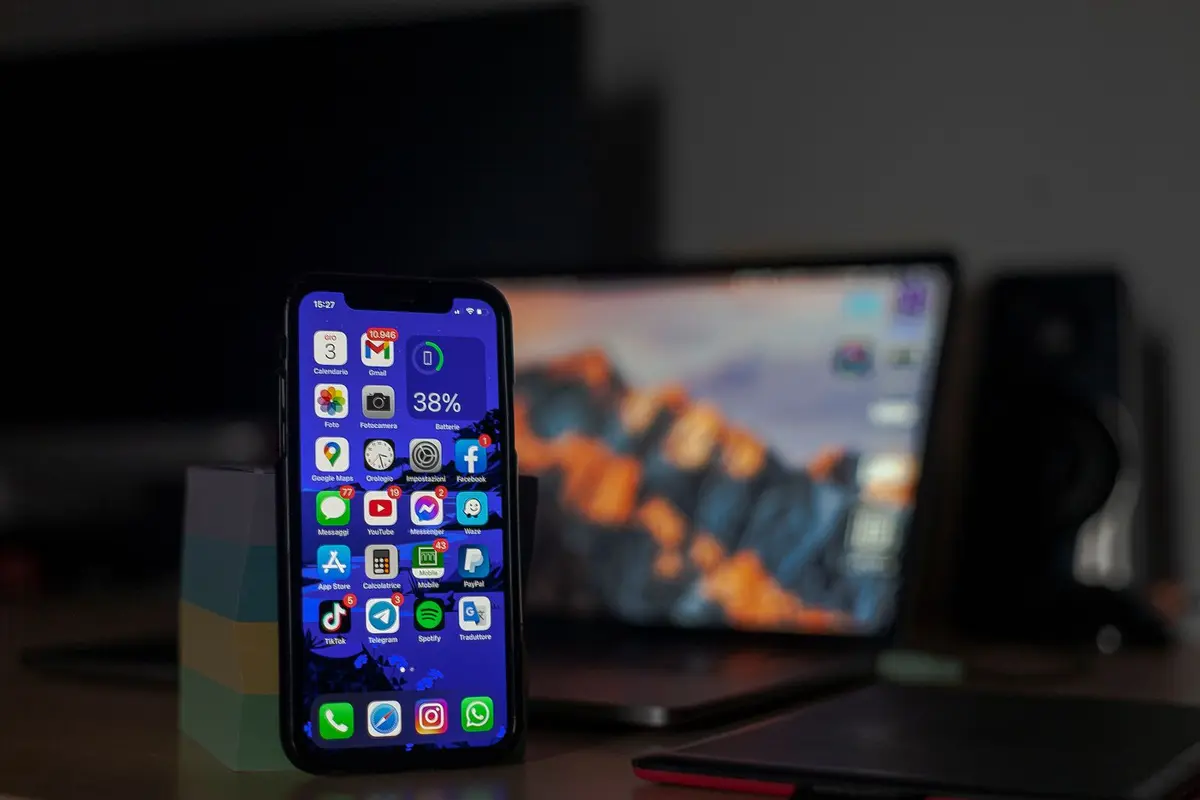
Long-press any empty area on your Home Screen until the app icons begin to jiggle. Once the icons enter jiggle mode, a plus (+) button will appear in the top-left corner of the screen.
Note: You can also access the widget gallery by long-pressing an app icon and selecting Edit Home Screen.Open the widget gallery
Tap the plus (+) icon in the top-left corner to open the Widget Gallery. Use the search bar at the top to find a specific app or scroll through the list of available widgets.
Choose your widget size
Tap the desired app to view its available widget sizes. Swipe horizontally through the preview cards to select either small, medium, or large configurations before tapping Add Widget.
Note: The preview shows exactly how the widget will look on your Home Screen grid.Position the widget
While the widget is still in jiggle mode, drag it to your preferred location on any Home Screen page. Existing icons will automatically shift to accommodate the new widget size.
Save your layout
Once the widget is placed, tap Done in the top-right corner of the screen to exit jiggle mode. Your widget is now active and will update periodically with live information.