How to Customize Widgets on iPhone
- Difficulty
- Beginner
- Tested on
- iOS 18.4 - iPhone 15 Pro
- You will need
- iPhone running iOS 14 or later
Step by step
Enter jiggle mode
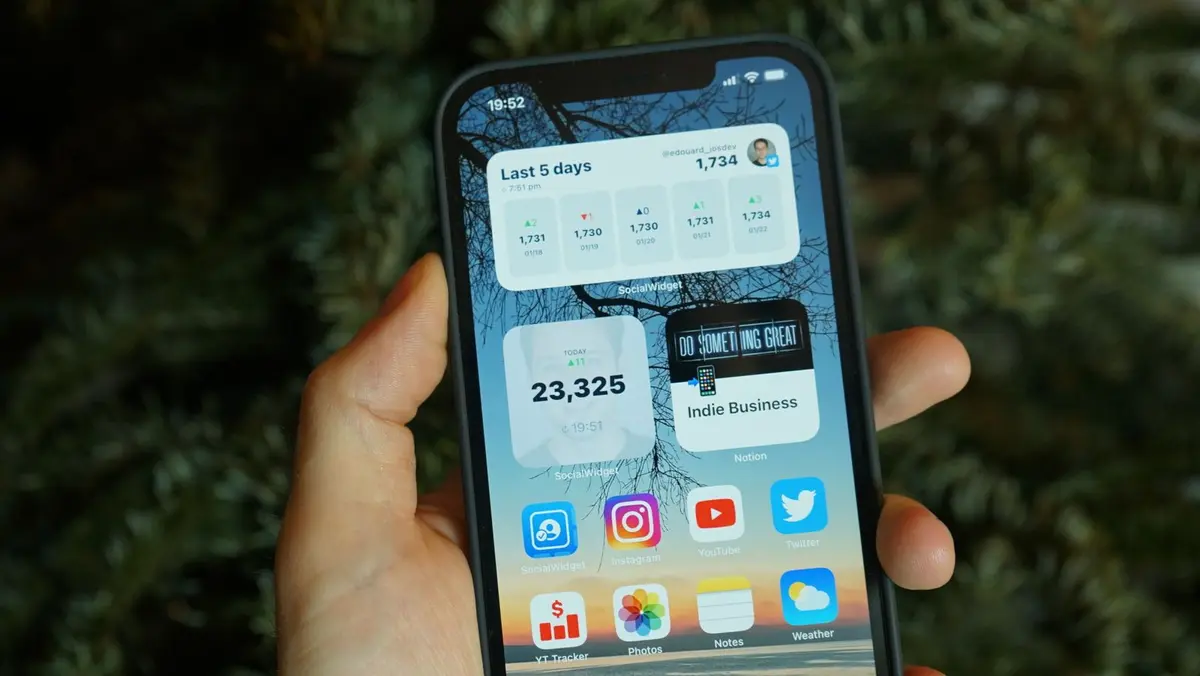
Long-press any empty area on your Home Screen until the icons begin to jiggle. Tap the plus (+) icon located in the top-left corner of the screen to open the widget gallery.
Browse and select a widget
Scroll through the list of available app widgets or use the search bar at the top to find a specific application. Tap the widget to view the available size configurations, such as small, medium, or large.
Note: Size impacts the amount of information displayed and the layout footprint on your screen.Place the widget
Once you have selected a size, tap Add Widget. Drag the widget to your preferred position on the Home Screen and release it. Tap Done in the top-right corner to exit edit mode.
Create a Smart Stack
To save space, drag one widget on top of another widget of the same size. This creates a Smart Stack, allowing you to swipe through multiple widgets in a single location.
Note: The system will automatically rotate widgets in the stack based on usage patterns and time of day.Modify widget properties
Long-press an existing widget and select Edit Widget to change its specific settings or data source. Available options depend on the individual application and its functional capabilities.
Note: Some widgets allow you to toggle specific display data, such as city location for weather or a specific calendar view.