How to Fix iPhone Not Charging
- Difficulty
- Beginner
- Tested on
- iOS 18.4 - iPhone 15 Pro
- You will need
- Lightning or USB-C cable, Certified power adapter, Compressed air, Non-conductive toothpick
Step by step
Inspect the charging port for debris
Power off your device completely. Use a bright light to examine the charging port for lint, dust, or metal particles that may be obstructing the contact pins. If debris is present, use a non-conductive toothpick to gently clear the port.
Note: Never use metal tools inside the charging port as they can cause short circuits.Verify cable and adapter integrity
Inspect your charging cable for visible fraying or bent pins. Test the cable with a different MFi-certified power adapter to eliminate the brick as the source of failure. If possible, test with a secondary, known-good cable.
Note: Third-party non-certified cables often fail to negotiate power delivery with iOS.Perform a forced restart
A software glitch may prevent the charging controller from acknowledging a connection. Press and quickly release the Volume Up button, press and quickly release the Volume Down button, then press and hold the Side button until the Apple logo appears.
Note: Continue holding the Side button until the screen goes black and the logo reappears.Disable Optimized Battery Charging
Navigate to Settings > Battery > Battery Health & Charging. Toggle off Optimized Battery Charging to ensure the device does not artificially cap power intake based on your routine. Return to the charger to see if the device begins drawing current.
Note: Re-enable this setting after testing to preserve long-term battery health.Check for iOS software updates
Outdated firmware can cause power management errors. Go to Settings > General > Software Update and install any pending updates. A reboot triggered by the update process often resets the charging interface.
Note: Ensure your device has at least 20% battery remaining before initiating an update.Utilize a wireless charger
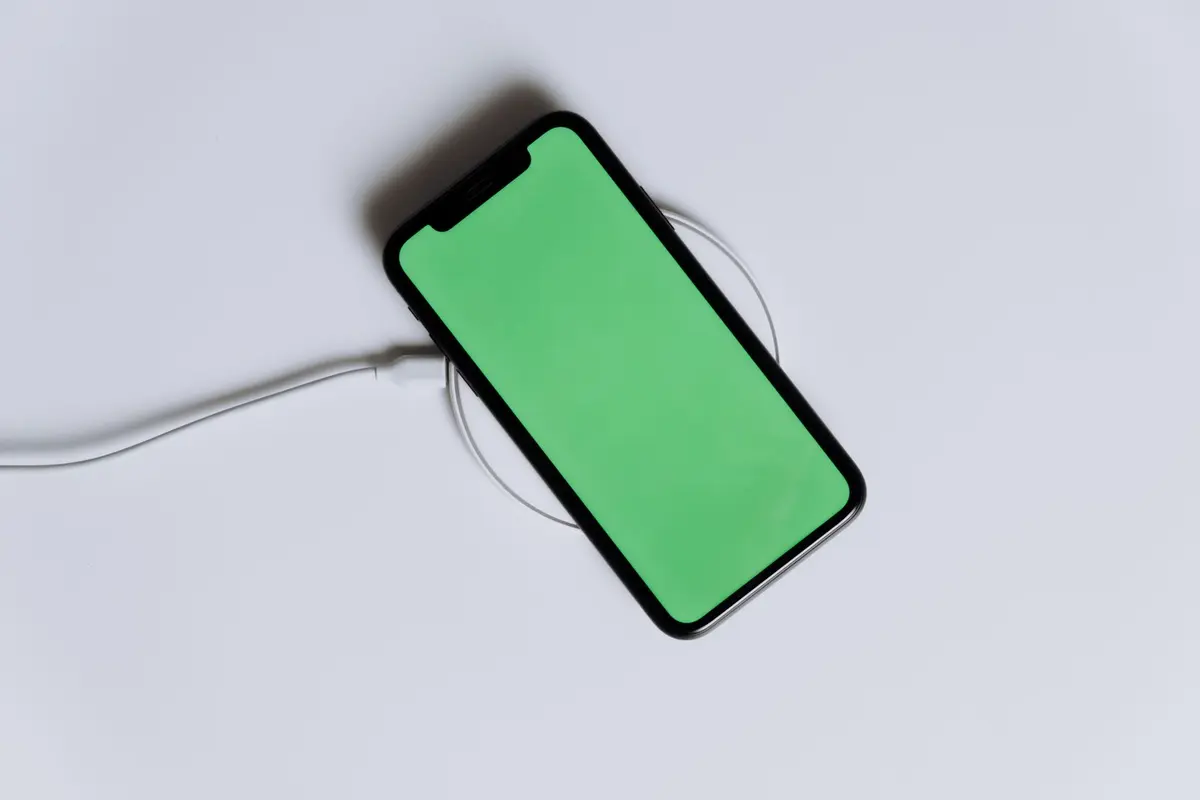
If you have a Qi-certified or MagSafe charger, place your iPhone on the pad. If the device charges wirelessly, the issue is strictly related to the physical Lightning or USB-C port. This confirms a hardware fault in the port itself.
Note: If the device does not charge via wireless, the issue may lie with the battery module or logic board.