How to Configure Apple Pencil Gestures on iPad
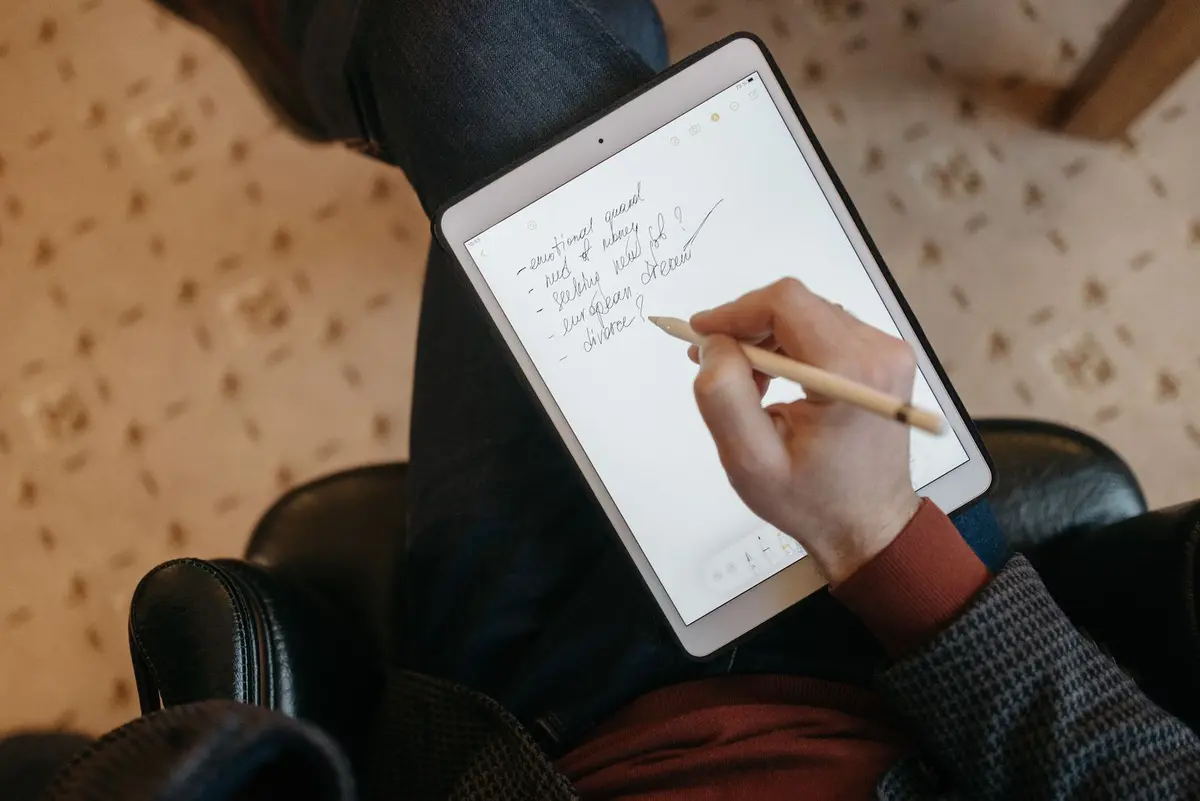
- Difficulty
- Beginner
- Tested on
- iPadOS 18.4 - iPad Pro M4
- You will need
- Apple Pencil Pro or Apple Pencil (2nd generation), iPad running iPadOS 17.0 or later
Step by step
Pair your Apple Pencil
Attach your Apple Pencil to the magnetic connector on the side of your iPad. A prompt will appear on the screen confirming the connection and battery level.
Note: Ensure Bluetooth is enabled in Settings > Bluetooth.Open Pencil settings
Open the Settings app on your iPad. Scroll down the left sidebar and select the Apple Pencil menu item.
Set double-tap behavior
Locate the Double Tap section. Choose from the available options: Switch between current tool and eraser, Switch between current tool and last used, Show color palette, or Off to disable.
Note: The double-tap gesture requires you to tap twice quickly on the flat edge near the tip of your Apple Pencil.Adjust squeeze settings
If you are using an Apple Pencil Pro, locate the Squeeze section. Tap to choose the shortcut that triggers when you squeeze the barrel, such as Show Tool Palette or Show Ink Attributes.
Note: Squeeze sensitivity can also be adjusted within this menu.Test gesture response
Open a drawing application like Notes or Freeform. Perform the configured squeeze or double-tap gesture to ensure the tool switches as expected.