How to Use Android Split Screen
- Difficulty
- Beginner
- Tested on
- Android 7.0 and later
Step by step
Open the first app
Launch the app you want to use in split screen mode. This app will occupy one half of your screen once split screen is activated.
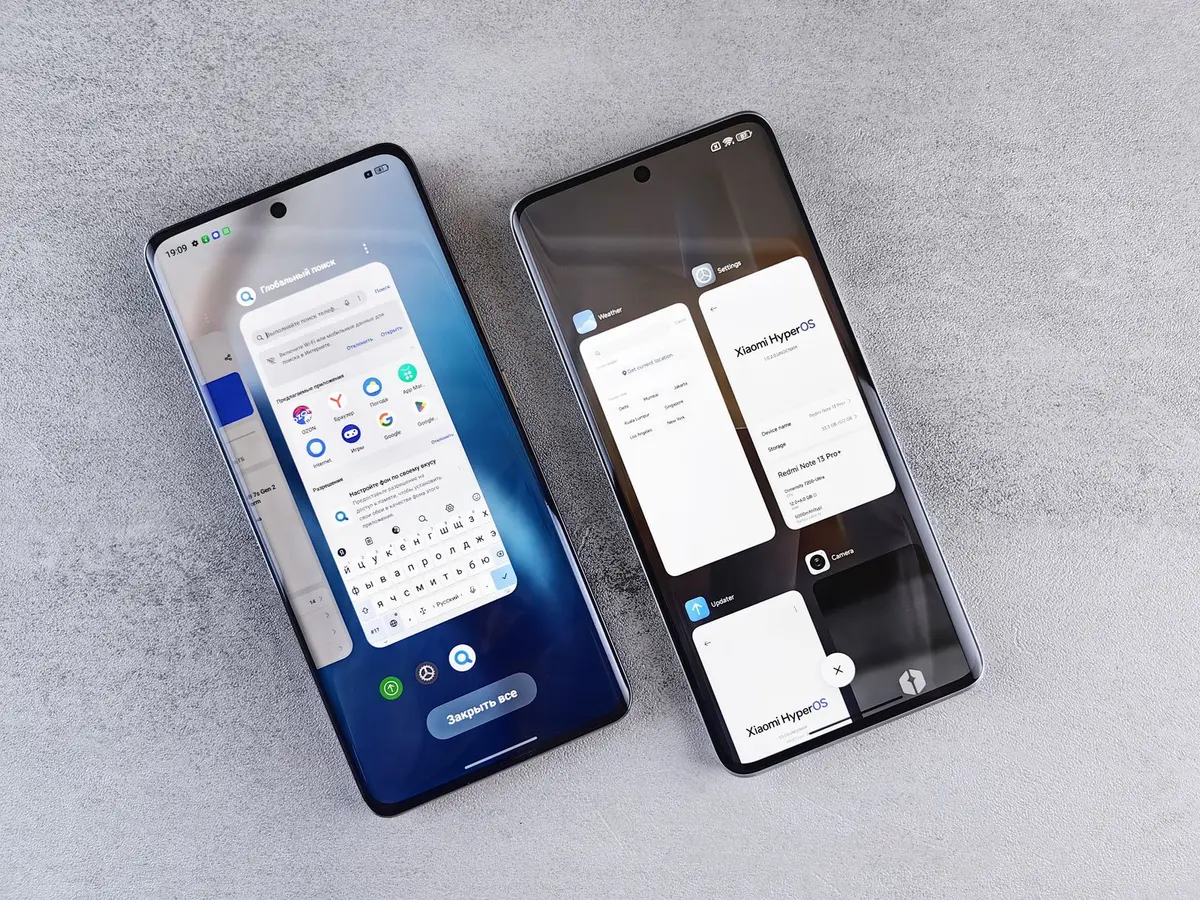
Access recent apps
Tap the recent apps button (square icon) in your navigation bar, or swipe up from the bottom of the screen and hold if using gesture navigation. This opens the recent apps overview.
Note: On Samsung devices, you can also long-press the recent apps button to activate split screen directly.Activate split screen
Find your current app in the recent apps list and tap the app icon at the top of its preview card. Select 'Split screen' or 'Open in split screen view' from the menu that appears.
Note: You can also long-press and drag the app preview to the top or bottom of the screen to activate split screen mode.Choose the second app
Your screen now shows the first app in the top half and recent apps in the bottom half. Tap any app from the recent apps list or home screen to fill the second half of the screen.
Adjust the split
Drag the divider line between the two apps up or down to resize each app's screen space. You can make one app larger and the other smaller based on your needs.
Note: Double-tap the divider to quickly return both apps to equal 50/50 split.Exit split screen
Drag the divider all the way to the top or bottom of the screen to close one app and return to single-app view. Alternatively, tap the recent apps button and tap the split screen icon to exit.
Note: Press the home button to minimize both apps while keeping split screen active for quick return.