How to Use Quick Share on Android
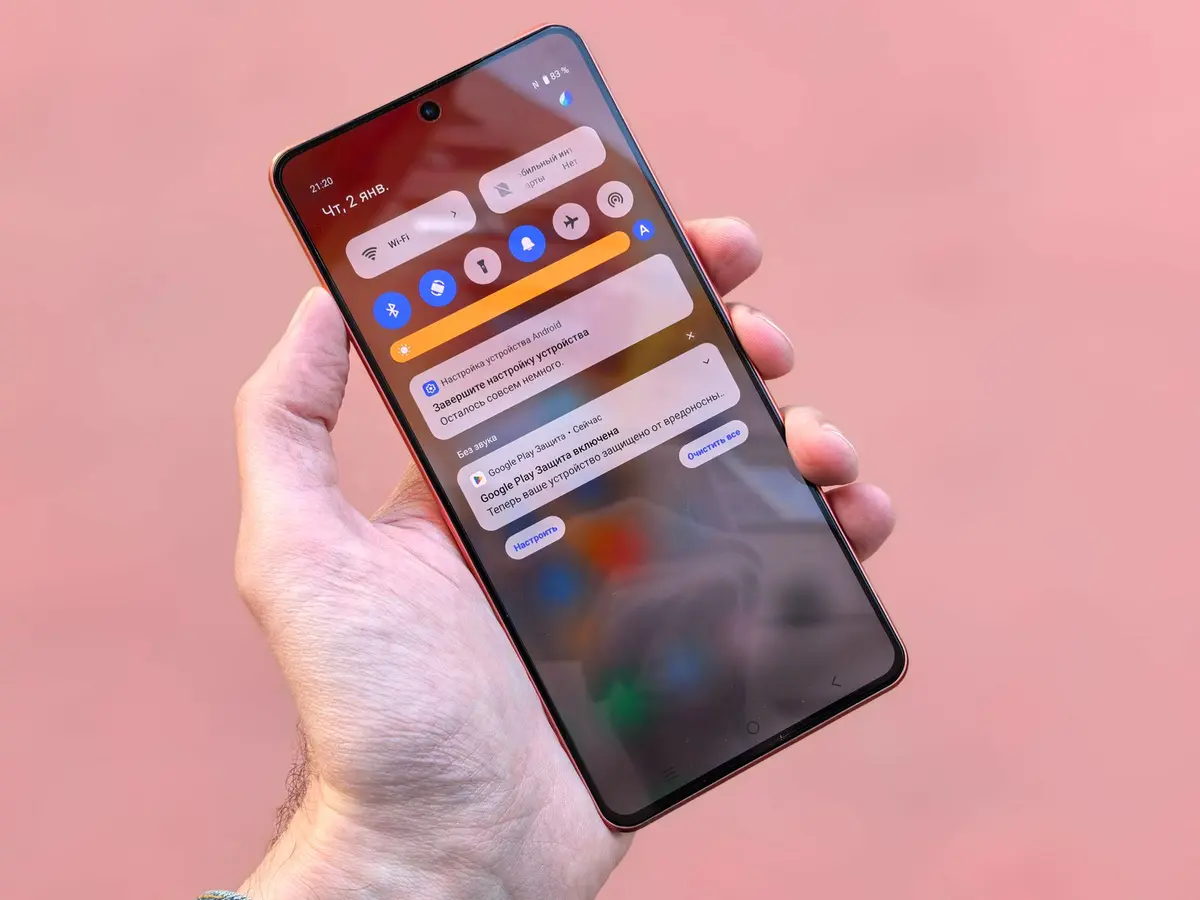
- Difficulty
- Beginner
- Tested on
- Android 15 - Pixel 9 Pro
- You will need
- Two devices with Bluetooth and Wi-Fi enabled, Quick Share app on Windows (if transferring to PC)
Step by step
Enable Quick Share on your device
Swipe down from the top of your screen to open the Quick Settings panel. Locate the Quick Share icon and ensure it is set to On. If the icon is not visible, tap the Edit (pencil) icon to add it to your active tiles.
Note: Ensure Bluetooth and Location services are enabled for optimal discovery.Select the file for transfer
Open the file, photo, or document you wish to share using its native application. Tap the Share icon, which is typically represented by three connected dots or an upward-pointing arrow.
Tap the Quick Share icon
Within the share sheet, select the Quick Share icon. Your device will begin searching for nearby available devices. Ensure the receiving device is unlocked and has its visibility settings configured to receive files.
Note: You can set your visibility to Everyone or Contacts Only in the Quick Share settings menu.Select the recipient device
Tap the name of the target device when it appears in the device list. If you are sharing with a Windows PC, ensure the Quick Share for Windows application is open and active on the computer.
Accept the transfer
On the receiving device, a notification will appear requesting permission to accept the file. Tap Accept to initiate the transfer. Once the progress bar reaches completion, the file will be saved in your Downloads folder.
Note: Files shared with known contacts or devices logged into the same Google account are often accepted automatically.