How to Fix a Google Account Sign-In Loop on Android
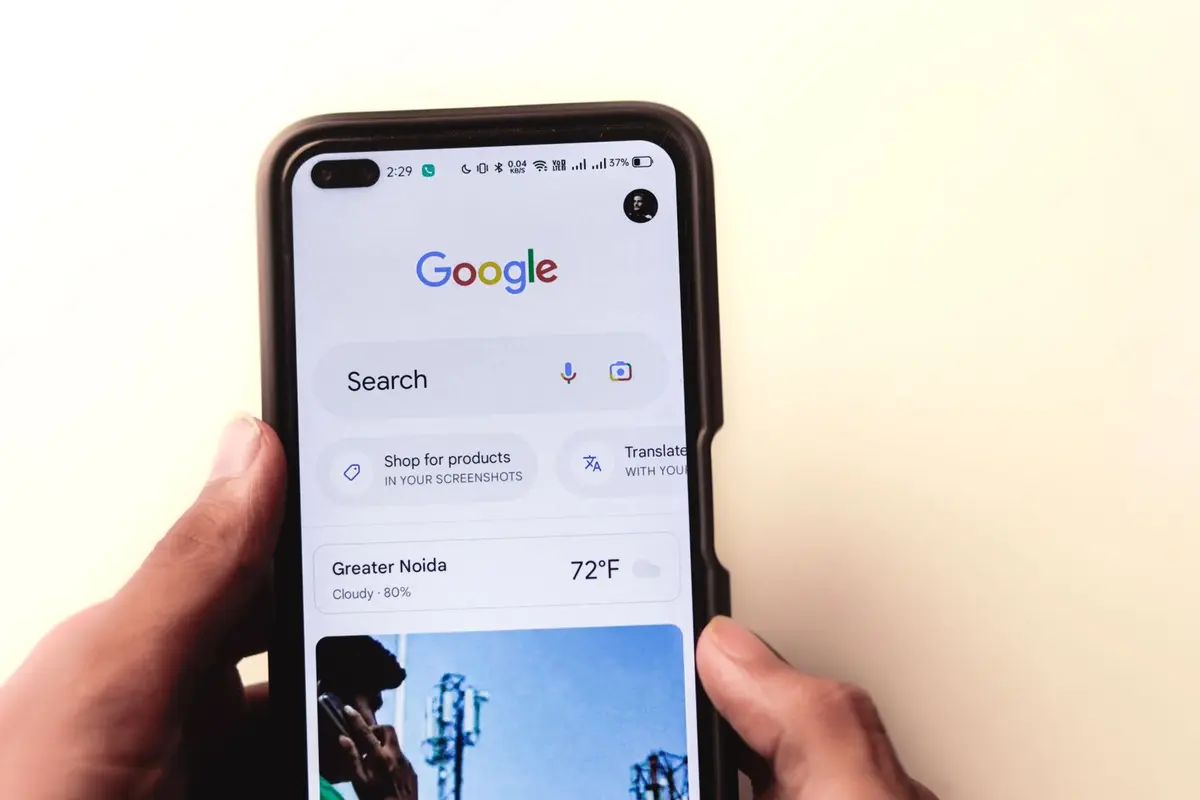
- Difficulty
- Intermediate
- Tested on
- Android 15 - Pixel 8 Pro
- You will need
- Active internet connection, Google account password
Step by step
Clear cache for Google Play Services
Open Settings and navigate to Apps > See all apps. Locate Google Play Services, tap Storage & cache, and select Clear cache. Restart your device to see if the loop persists.
Note: Clearing cache does not delete your personal data.Remove the account from your device
Navigate to Settings > Passwords & accounts. Tap the Google account causing the loop, then select Remove account. Confirm the action to fully detach the credentials from the system.
Note: Ensure you know your account password before proceeding.Force restart the Android system
Press and hold the Power button and Volume Up button simultaneously until the screen goes black and the manufacturer logo appears. This clears temporary memory states that may be holding the corrupted authentication token.
Add the account back to the device
Navigate to Settings > Passwords & accounts > Add account. Select Google and follow the on-screen prompts to enter your email and password. Verify the identity if prompted by 2-Step Verification.
Note: Use a stable Wi-Fi connection for the re-authentication process.Verify system and app updates
Open the Google Play Store and tap your profile icon > Manage apps & device. Update all pending applications, specifically Google Play Services and the main Google app. Outdated system components are a frequent cause of authentication instability.