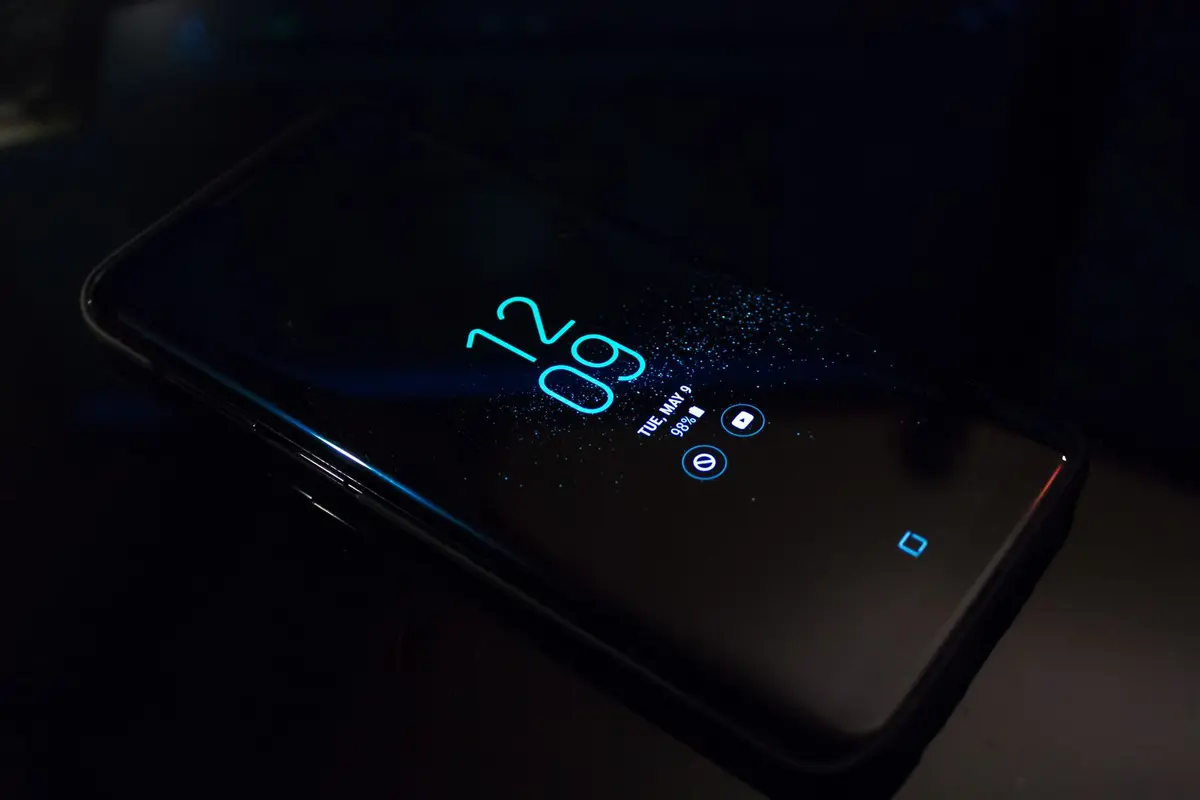
How to Customize Always On Display on Android
- Difficulty
- Beginner
- Tested on
- Android 15 - Pixel 9 Pro
- You will need
- Android device running Android 12 or higher
Step by step
Navigate to display settings
Open the Settings app on your Android device. Tap on Display, then select Lock screen to locate the Always On Display configuration options.
Note: On some manufacturer skins, this may be labeled as Always On Display & Lock Screen.Enable Always On Display
Locate the Always show time and info toggle. Ensure the switch is set to the On position to activate the feature.
Select a clock style
Tap on Clock style or Customize within the Always On Display menu. Scroll through the available themes and select your preferred layout, color, and font style.
Note: Some styles allow for custom color accents matching your Material You color palette.Set a display schedule
Select When to show to choose between Always, Scheduled, or For new notifications. If you select Scheduled, define the specific start and end times to preserve battery life overnight.
Note: Selecting For new notifications will turn the screen off when no active alerts are present.Filter lock screen notifications
Return to the Always On Display settings menu and tap on Notifications. Choose whether to show sensitive content, hide content until unlocked, or disable notifications entirely on the idle screen.
Note: Hiding sensitive content keeps previews of private messages hidden while the screen is in idle mode.Toggle additional display info
Enable Show music info if you want track details to appear on the idle screen during media playback. Verify the Always On Display preview to ensure the layout meets your preferences.
Note: Frequent changes to these settings can impact overall device battery life.