How to Compare Streaming Device Advertising Models
- Difficulty
- Beginner
- Tested on
- tvOS 18, Roku OS 14, Fire OS 9
- You will need
- Access to manufacturer support pages, active streaming accounts
Step by step
Evaluate the home screen ad density
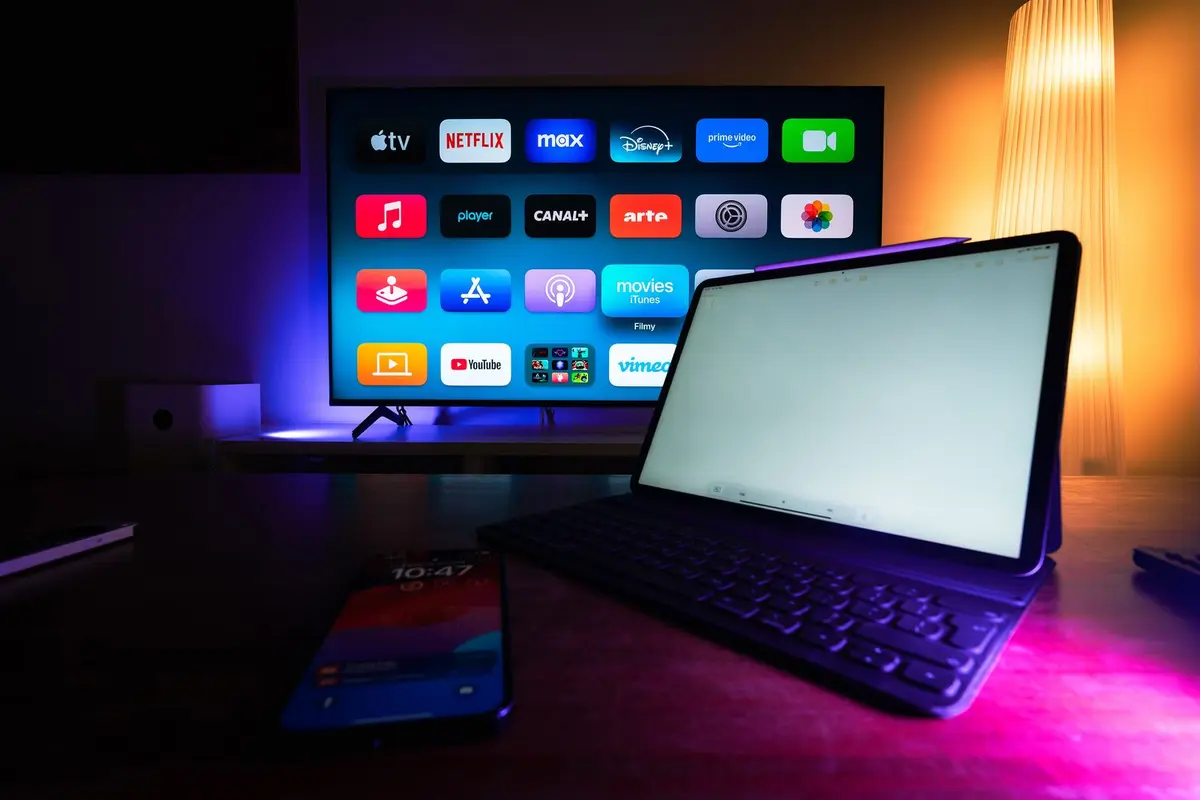
Assess the primary user interface of your potential device. Compare platforms that use a static grid layout against those that feature a large, auto-playing video billboard at the top of the home screen, as these occupy significant screen real estate.
Note: Platforms with aggressive top-screen billboards often prioritize sponsored content over installed applications.Check for sponsored discovery rows
Inspect the scrollable lists below the main dashboard. Identify if the device mixes user-installed apps with sponsored content or 'Recommended for You' rows that prioritize partner services over your existing subscriptions.
Note: Look for labels like 'Sponsored' or 'Ad' embedded in the content rail.Examine privacy and ad tracking settings
Navigate to the device Settings menu and locate Privacy or Advertising settings. Compare the granularity of controls available for limiting ad tracking, resetting advertising IDs, and opting out of personalized recommendations based on viewing history.
Note: A platform with a 'Limit Ad Tracking' toggle provides more control than one requiring manual opt-outs for every category.Verify cross-platform search bias
Use the universal search function on the device. Determine if results prioritize the platform's owned streaming service or an ad-supported partner over a service you already have an active subscription for.
Note: Search results should ideally list your installed apps first if available.Account for screen saver advertising
Confirm whether the device displays static or video advertisements when the screen saver is active. Choose platforms that allow you to set custom photo albums or neutral screensavers to avoid passive ad exposure.
Note: Some devices disable ad-free screen savers by design.