Establish a Data Backup Strategy Before New Hardware Integration
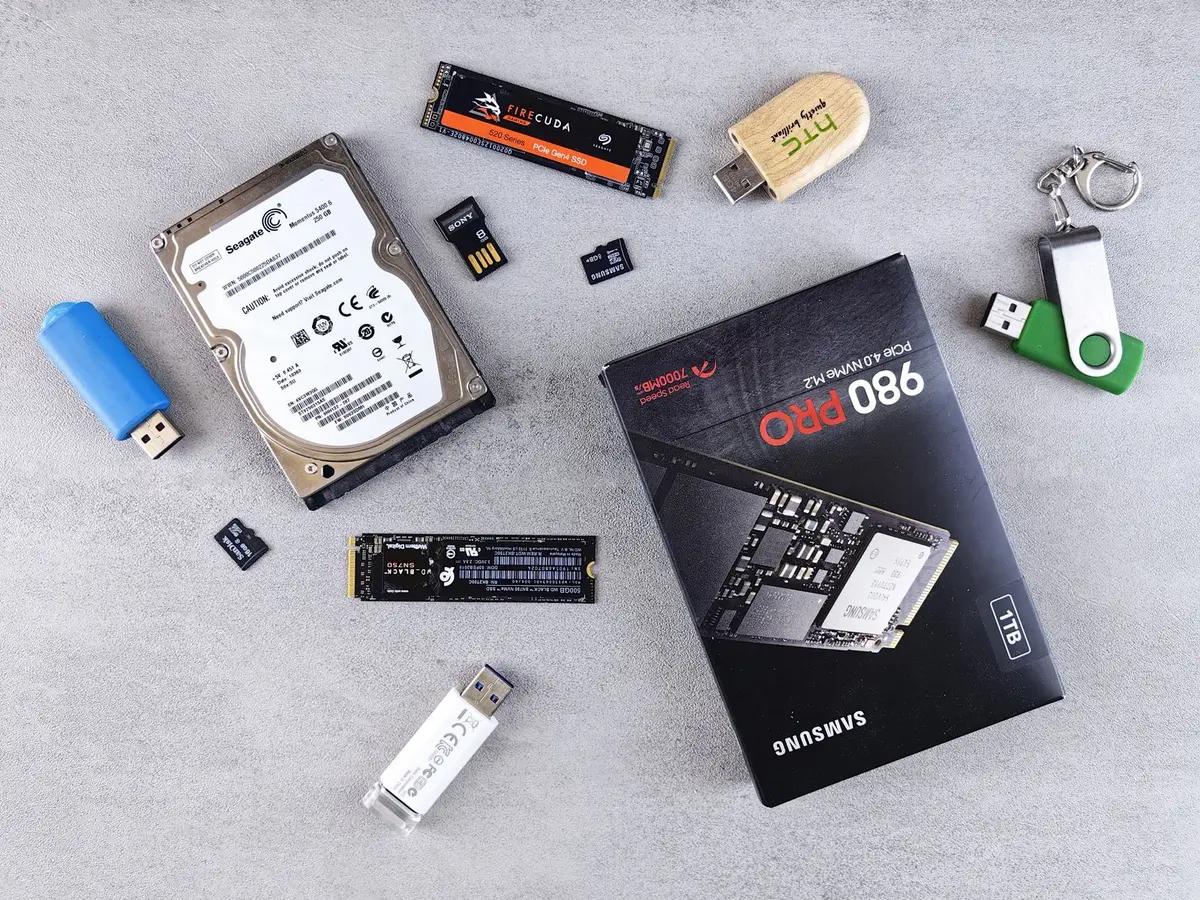
- Difficulty
- Beginner
- Tested on
- macOS 15.x / Windows 11 / iOS 18.x
- You will need
- External SSD, cloud storage subscription, internet connection
Step by step
Audit existing data sources
Identify every location where your data resides. Scan local internal drives, external storage media, and sync services like iCloud, Google Drive, or Dropbox. Create a list of essential folders and file paths that must migrate to your new hardware.
Note: Use a simple spreadsheet to track storage volume and folder priority.Centralize fragmented files
Move disparate files from desktop clutter or temporary download folders into structured directories. Use standard naming conventions to ensure all critical documents, images, and project files are grouped by category. Remove duplicate files to reduce transfer time.
Note: Delete junk files and caches before backing up to save transfer time.Execute a full local system backup
Perform a bit-for-bit clone or a comprehensive time-machine style backup of your current device. Connect a high-speed external SSD and initiate a full system image to ensure the entire drive state is captured. Do not proceed with hardware unboxing until this verification succeeds.
Note: Verify the backup integrity by mounting the image and opening a random sample of files.Force cloud synchronization
Navigate to your primary cloud storage application settings and verify that 'Sync Now' status is active. Check the web portal for your service to confirm the most recent file timestamps match your local machine. Ensure no pending conflicts remain in the sync queue.
Note: Check the cloud dashboard to confirm storage quotas have not been exceeded.Export critical account keys
Ensure your password manager is updated and synced to the cloud. Export a secondary, encrypted copy of your vault to an offline encrypted drive if you do not trust cloud-only storage. Confirm you have your recovery keys or master passwords written down in a secure physical location.
Note: Do not store master passwords in unencrypted plain text files.Disconnect and verify
Safely eject all external media from the old device. Confirm that the backup drive contains the full directory structure you identified in Step 1. Your old device should now be effectively treated as a secondary reference unit until the new device is fully operational.
Note: Keep your backup drive physically separate from the new device during initial setup.