How to Create Routines in Google Home
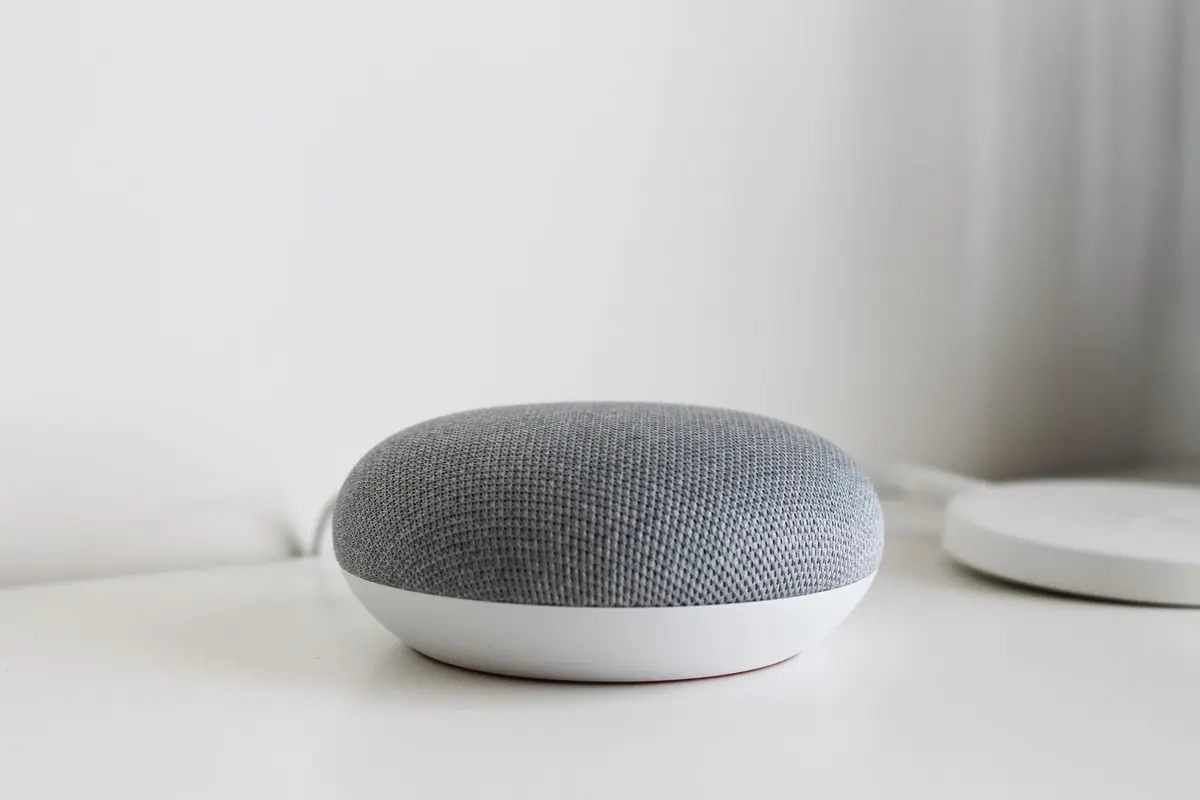
Google Home routines let you trigger multiple actions with a single voice command or schedule. Instead of saying separate commands for each device, create a routine that dims lights, plays music, and adjusts temperature simultaneously.
- Difficulty
- Beginner
- Time
- 5 minutes
Step by step
Open the Google Home app
Launch the Google Home app on your smartphone or tablet. Ensure you're signed into the same Google account connected to your Google Home device. The app icon appears as a colored house outline.
Note: Force close and reopen the app if your devices don't appear immediately after setup changes.Navigate to Routines
Tap the Automations tab at the bottom of the screen. Select 'Routines' from the automations menu. You'll see any existing routines and a plus icon to create new ones.
Create a new routine
Tap the plus (+) icon in the bottom right corner. Choose 'Add starter' to define what triggers your routine. Select either 'When I say something' for voice activation or 'At a specific time and date' for scheduled routines.
Note: Voice starters work best with 2-4 word phrases that don't conflict with existing Google commands.Set your trigger phrase or schedule
For voice activation, type your custom phrase like 'Movie time' or 'Good morning.' For scheduled routines, select specific days and times. Tap 'Done' when finished setting your trigger.
Note: Test unusual phrases first - Google may suggest alternatives if your phrase conflicts with built-in commands.Add actions to your routine
Tap 'Add action' to define what happens when the routine triggers. Choose from categories like Lights, Media, Smart home controls, or Assistant answers. Select specific devices and their desired states or actions.
Note: Actions execute in the order you add them. Reorder by tapping and dragging the three-line handle next to each action.Configure device-specific settings
For each action, specify exact settings like brightness levels, temperature values, or playlist names. Tap each action to access detailed controls. Some actions offer advanced timing options to delay execution.
Note: Use percentage values for lights and volume instead of vague terms like 'bright' for more consistent results.Test and save your routine
Tap 'Save' to create your routine. Test it immediately by saying your trigger phrase to any Google Home device or manually running it from the Routines list in the app. The routine appears in your automations list for future editing.
Note: Routines sync across all Google Home devices on your account within a few minutes of creation.