How to Scan Documents to PDF at Home
- Difficulty
- Beginner
- Tested on
- macOS Sequoia, iOS 18.4, HP OfficeJet Pro
- You will need
- Document scanner or printer, Wi-Fi network, Mac or iPhone
Step by step
Prepare your scanning device
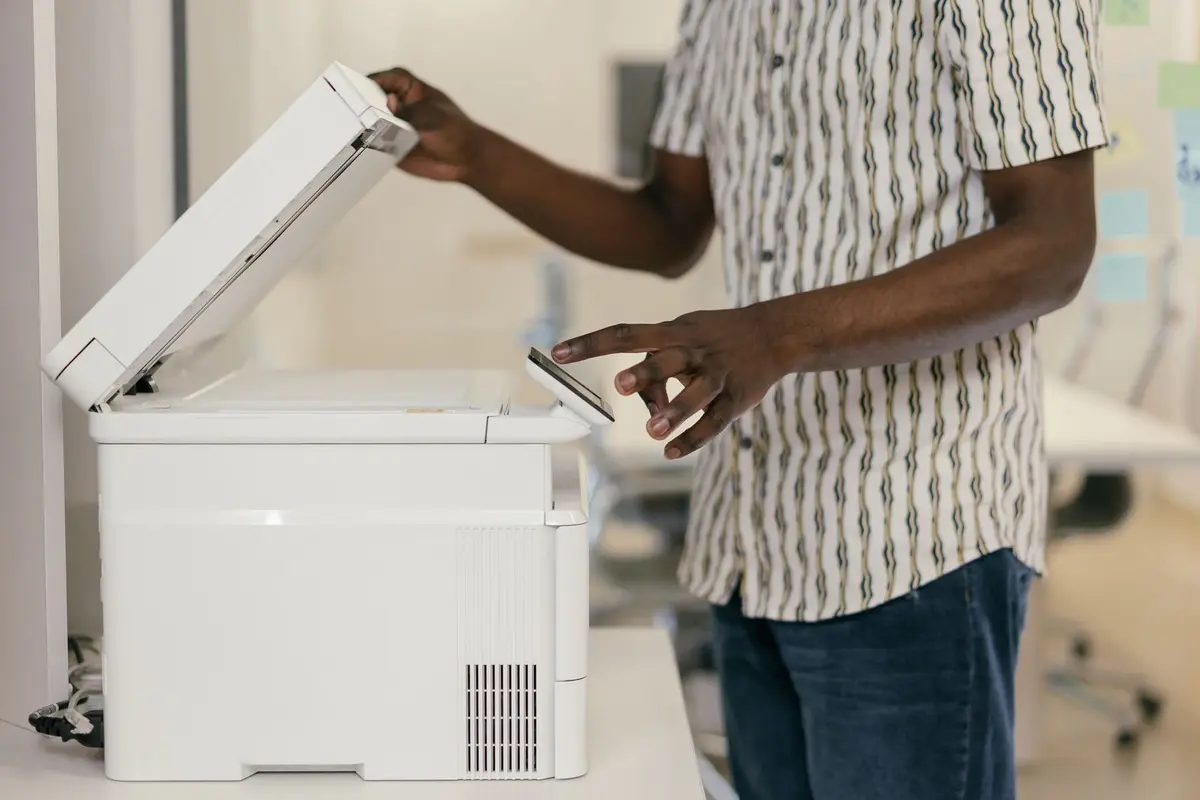
Place your document face down on the scanner glass or face up in the automatic document feeder. Ensure the edges are aligned with the marked guide arrows on the scanner bed. Close the lid completely to prevent light interference.
Note: For multi-page documents, use the document feeder if available to maintain alignment.Initiate the scan from macOS
Open System Settings and navigate to Printers & Scanners. Select your scanner from the device list, then click Open Scanner. Set the Kind to 'Document' and ensure the Format is set to PDF.
Note: Use the 'Combine into single document' toggle if scanning multiple pages.Configure output settings
Choose your resolution in the Resolution menu; 300 dpi is the standard for text-based documents. Select the destination folder in the Scan To dropdown menu. Click Scan to initiate the digitizing process.
Note: Higher resolutions will significantly increase file size without improving text clarity.Scan via iPhone Notes
Open the Notes app and create a new note or open an existing one. Tap the Camera icon, then select Scan Documents. Position your document in the viewfinder; the device will automatically detect and capture the page.
Note: Switch to Manual mode if the automatic shutter fails to trigger correctly.Save and share the PDF
Once the scan is captured on your iPhone, tap Keep Scan, then tap Save. Tap the document thumbnail, tap the Share icon, and select Save to Files to finalize the PDF export. The file is now ready for cloud storage or email.
Note: Use the markup tools within the Notes app to annotate or sign the PDF before saving.