How to Mount a Webcam on a Monitor
- Difficulty
- Beginner
- Tested on
- macOS Sequoia - Dell UltraSharp Monitor
- You will need
- Webcam, monitor, microfiber cloth, USB cable
Step by step
Clean the monitor bezel
Wipe the top edge of your monitor frame with a dry microfiber cloth to remove dust and oils. A clean surface ensures the webcam grip maintains maximum friction and stability.
Note: Avoid using liquid cleaners directly on the screen surface.Adjust the webcam hinge
Open the folding arm on the base of your webcam. Extend the arm fully so it can accommodate the thickness of your monitor frame, and slightly loosen the tension if the hinge is adjustable.
Position the camera on center
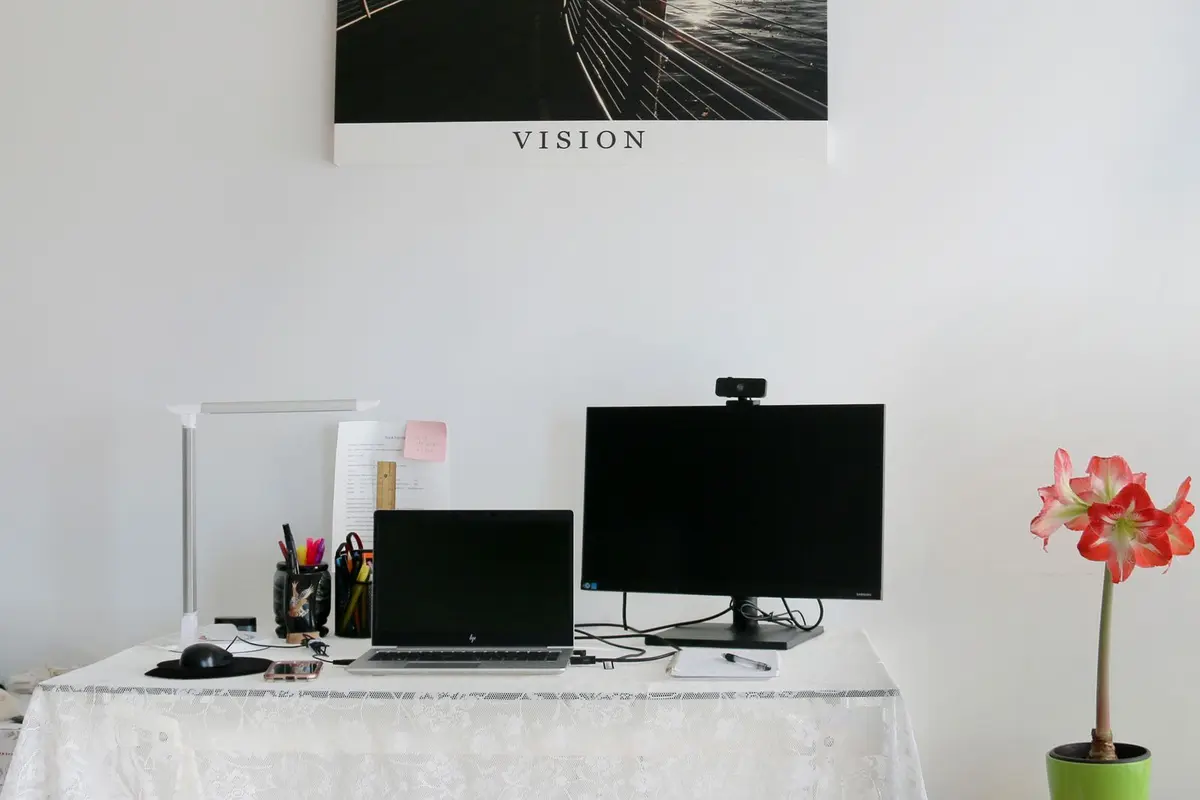
Place the webcam on the top center of your monitor. The front lip of the webcam should rest against the front bezel, while the rear hinge rests securely against the back of the monitor housing.
Note: Ensure the camera is not obstructing any status LEDs or ambient light sensors on your monitor.Tighten the grip
Adjust the rear arm of the webcam until it presses firmly against the back of the monitor. If your mount uses a tension screw or a locking mechanism, tighten it until the camera remains stationary when bumped lightly.
Route and connect the cable
Plug the USB cable into the webcam port. Secure the cable to the back of the monitor stand using cable management clips or a hook-and-loop strap to prevent gravity from pulling the camera off-center.
Note: Use a cable with sufficient length to prevent strain on the monitor ports.Check frame alignment
Open your video conferencing software or system camera app. Adjust the vertical tilt of the webcam until your eyes are positioned in the upper third of the frame.
Note: Test for image stability by typing on your keyboard to ensure no vibration jitter is visible.