How to Identify the Difference Between a Modem and a Router
- Difficulty
- Beginner
- Tested on
- Standard ISP Hardware
- You will need
- Access to your network hardware, flashlight
Step by step
Inspect the cable inputs
Locate the device connected directly to the wall outlet via a coaxial (round, screw-on) or fiber optic cable. This device is your modem, as it acts as the bridge between your ISP’s network and your home. The router will typically connect to the modem via a single Ethernet cable.
Note: Modems often have only one LAN port; routers feature multiple LAN ports.Check for external antennas
Look for protruding antennas on the device. If the hardware features multiple adjustable antennas, it is a router designed to broadcast a Wi-Fi signal. Modems rarely require external antennas as they do not perform radio signal processing.
Note: Some modern routers have internal antennas for a cleaner aesthetic.Review the port labels
Examine the back panel of each unit. A router will feature a distinct port labeled WAN or Internet, which receives the signal from the modem. The modem will feature an ISP-specific input port such as Cable, DSL, or PON.
Check the status lights
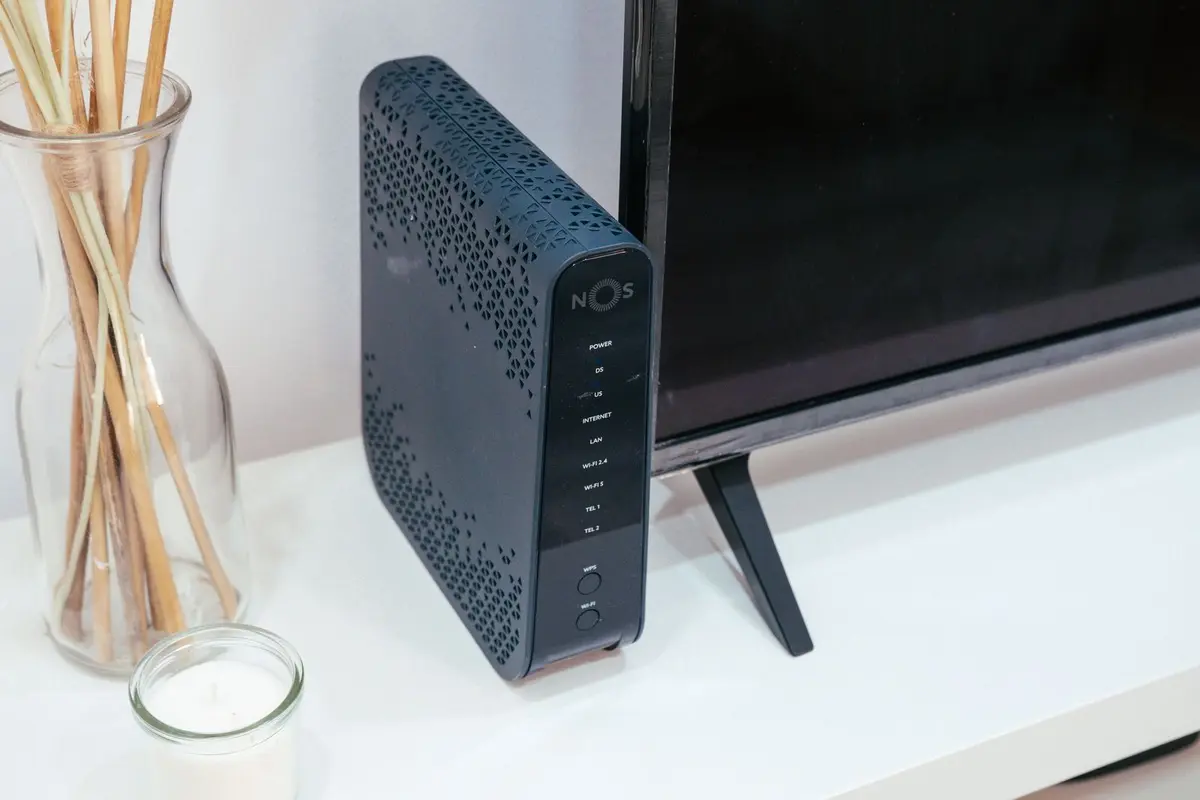
Observe the indicator LEDs on the front panel. Modems display lights related to signal acquisition, such as Downstream, Upstream, or Online. Routers display status lights related to data traffic, such as Wi-Fi, 2.4GHz, 5GHz, or LAN activity.
Look for a gateway combination unit
Confirm if you have a single device performing both functions. If your equipment has a coaxial input and provides both wired and wireless connectivity, it is a gateway (combo unit). In this case, there is no separate modem and router.
Note: ISP-provided equipment is frequently a 2-in-1 gateway.