How to Verify Laptop Port Specifications Before Purchase
- Difficulty
- Beginner
- Tested on
- Windows 11 / macOS Sequoia
- You will need
- Manufacturer spec sheet, peripheral compatibility list, high-resolution product images
Step by step
Review the technical specifications sheet
Navigate to the manufacturer's official support page for the laptop model. Locate the Input/Output (I/O) section to view a complete list of physical ports. Verify specific standards, such as whether a USB-C port supports Thunderbolt 4, Power Delivery, or DisplayPort Alt Mode.
Note: Marketing copy often omits specific protocol versions; always rely on the technical documentation PDF.Confirm display output capabilities
Identify the exact version of the HDMI or DisplayPort output. Modern displays require HDMI 2.1 for 4K at 120Hz, whereas HDMI 2.0 is limited to 60Hz. Ensure your external monitor's bandwidth requirements match the laptop's stated port generation.
Inspect chassis orientation and port layout
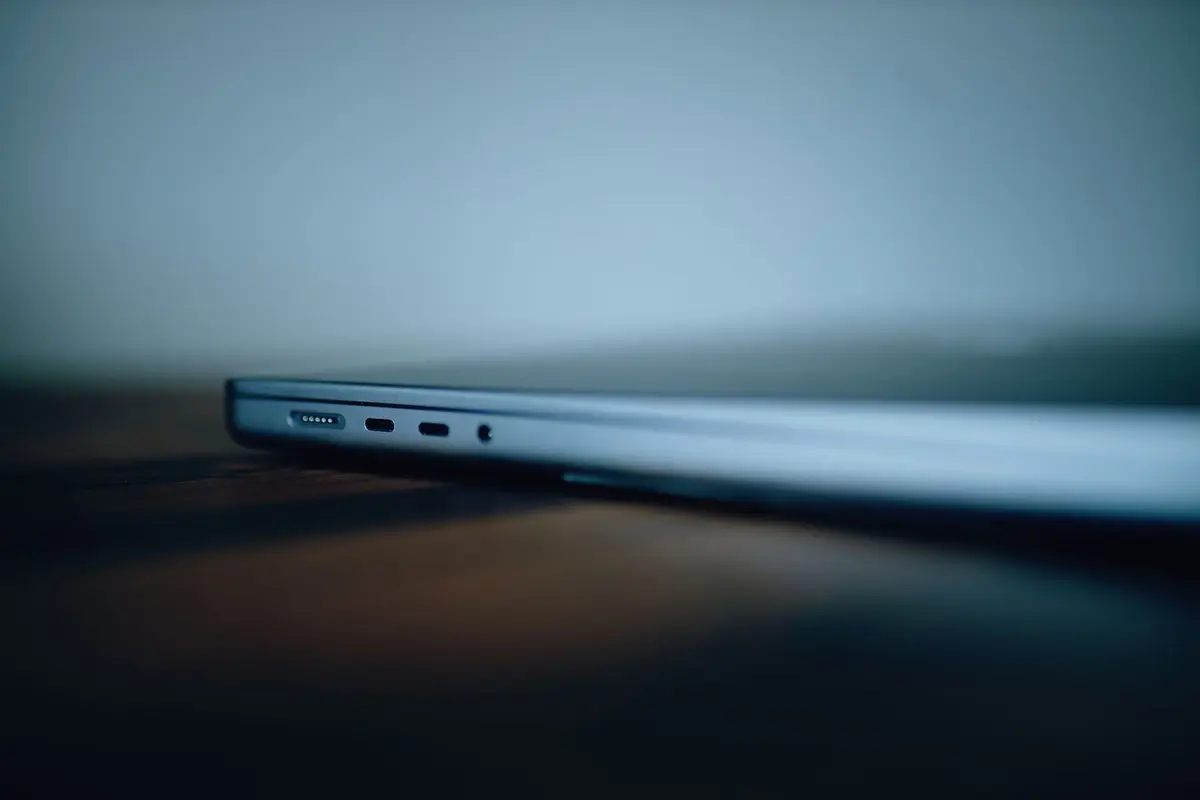
Consult high-resolution side-profile images of the device. Check if ports are crowded together, which can prevent the use of bulky USB flash drives or multiple adapters simultaneously. Verify if the charging port is located on the side you prefer for your workspace setup.
Note: A port located on the rear of the chassis is often superior for permanent cable management.Validate USB-C power delivery standards
Determine if the USB-C ports support Power Delivery (PD). This allows you to charge the laptop using a universal USB-C wall adapter instead of a proprietary barrel-plug charger. Check the wattage requirements to ensure your existing chargers provide sufficient power.
Audit legacy port requirements
Assess whether you need an SD card reader, Ethernet port, or 3.5mm audio jack. If these ports are absent, calculate the added cost of required dongles or docking stations. Factor these peripherals into your total investment budget.
Note: Internal ports are always more reliable than external USB-C hub connections.